DocsUsing Hime
Plans, devices and sign-in
Find your plan and change it, link the web app and other devices, sign in on a new phone, and delete your account.
Everything about your account lives in Settings. This page walks through what is there, then the three things people look for most: your plan, your devices, and how to sign in again.
Open Settings
Press and hold the mascot at the top left of the app. Settings opens as a sheet. (A plain tap opens Chat.) There is a search box at the top, and when another device or agent is waiting for your approval, a card appears above the rows.
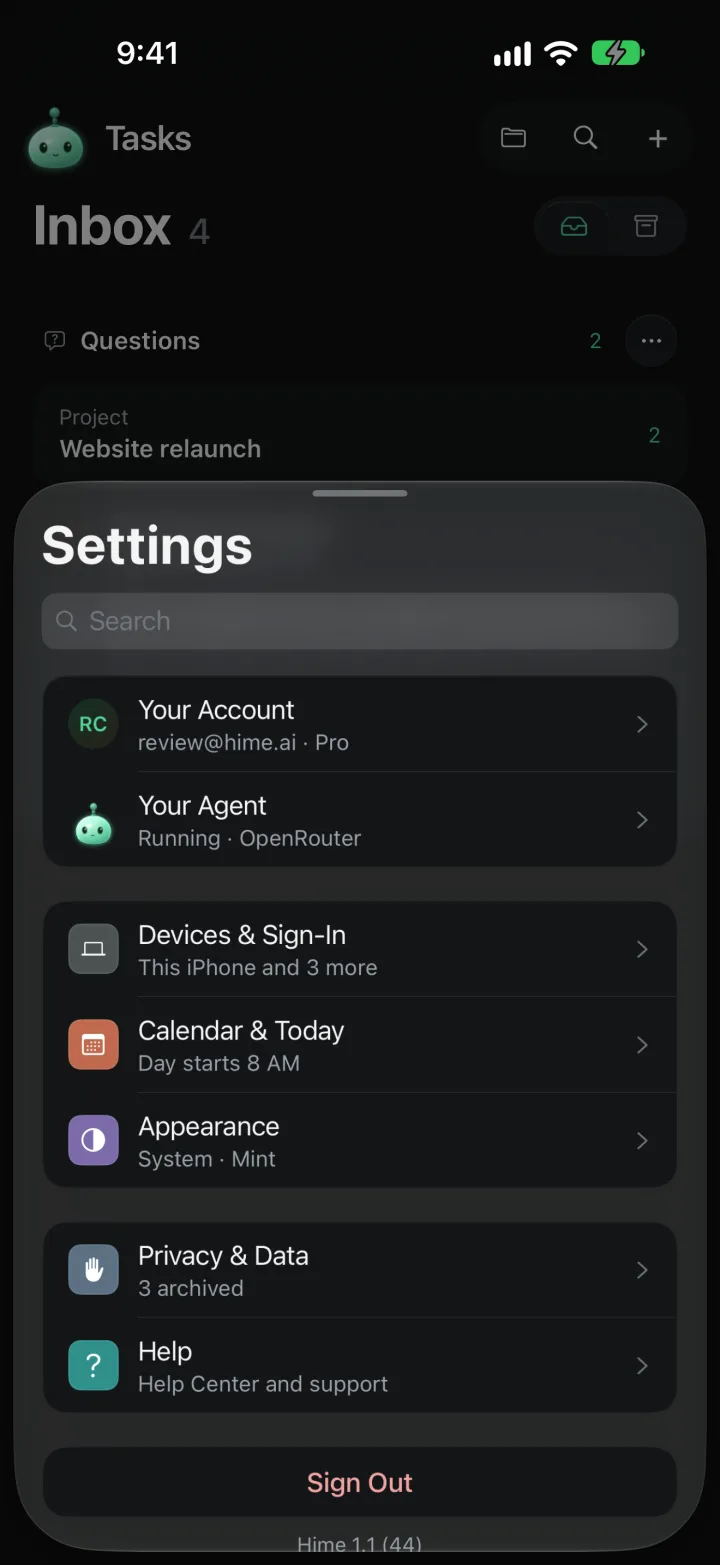
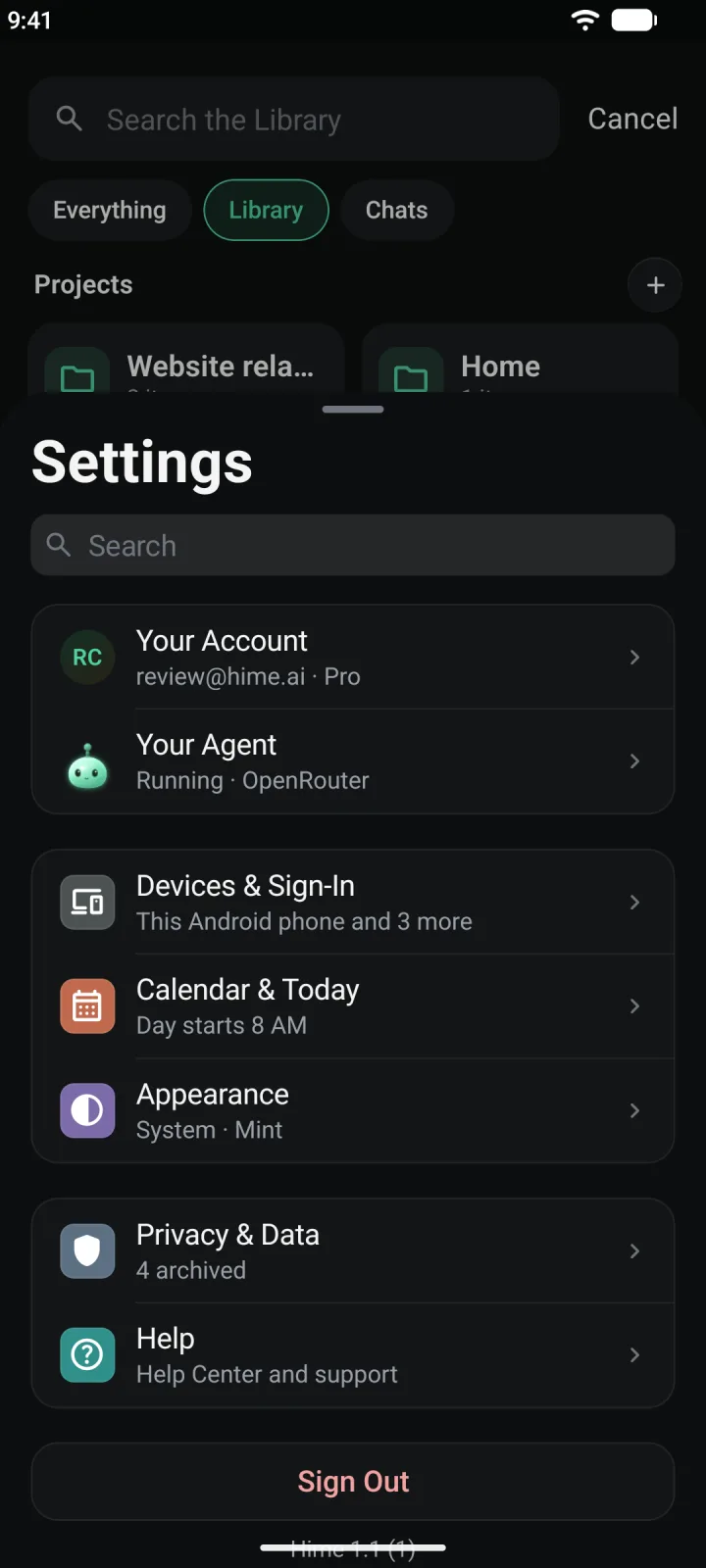
Each row has a line underneath that shows its current state, and turns to the most urgent thing when something needs you.
- Your Account: your name, email, a short bio your agents read, and your plan.
- Your Agent: how your agent looks, which agents are connected, and on Pro its computer.
- Devices & Sign-In: where you are signed in, linking new devices, and how you sign in.
- Calendar & Today: when your day starts, calendar notifications and conflicts, and the city for your weather.
- Appearance: System, Light or Dark, and your agent’s colour.
- Privacy & Data: your archive, the policies, and deleting your account.
- Help: the Help Center, how to contact support, your account ID and the app version.
- Sign Out: forgets your account on this phone.
Your plan
Hime has three plans. Without a paid plan you are on Tasks only, which the app also calls Free. Plus and Pro add agents and the web app.
- Tasks only keeps Today, Inbox and Library on your phone. It has soft limits: 3 projects, 100 notes and 250 MB of storage. Nothing you already have is ever blocked. Only making new things stops at the limit.
- Plus removes the limits and adds your own agents, such as Claude Code or Codex, through the Hime CLI. It also adds the web app at app.hime.ai.
- Pro is Plus, plus Hermes: a hosted agent that works 24/7 on its own computer. It adds agent chat and voice, live calls and a desktop you can watch. Pro runs on your own AI account, and Hime does not charge for the model. See Connect ChatGPT.
Compare plans
Tap Compare Plans under the first two rows in Settings. You can also tap Your Account, then the plan row under Plan. The Plan screen shows your current plan, when it renews or ends, who bills it, and the comparison.
On Android the comparison shows monthly prices only, as Google Play sets them. Weekly billing is not offered there.
Prices
| Where you pay | Plus | Pro |
|---|---|---|
| Web app, and iPhone app in the USStripe, weekly | $3.99 | $12.99 |
| Web app, and iPhone app in the USStripe, monthly | $9.99 | $34.99 |
| iPhone app outside the USApple, monthly | $12.99 | $39.99 |
| Android appGoogle Play, monthly | Shown in Google Play | Shown in Google Play |
Weekly billing is only offered where Hime bills you through Stripe. If you pay through the App Store or Google Play, the plan is monthly.
Buy a plan
On the Plan screen, tap See Plus or See Pro. Hime also offers a plan when you reach a limit or tap something that needs one, such as the web app.
What happens next depends on your App Store country.
- In the US, Hime opens a Stripe checkout page in Safari. You choose weekly or monthly, pay, and come back to the app. Hime waits for the payment to clear, then switches your plan on.
- Anywhere else, you buy through the App Store in the usual way. It is a monthly subscription billed by Apple.
Hime sells Plus and Pro through Google Play as a monthly subscription. Google Play shows the price and takes the payment. If Hime says “Google Play purchases are not available for this build yet”, subscribe on the web at app.hime.ai instead.
On the web, open app.hime.ai and sign in. If you have no plan yet, the page says “Choose a plan to use Hime on the web”. Pick Plus or Pro, weekly or monthly, and pay with Stripe. The web always bills through Stripe.
A gift from Hime
Hime sometimes gifts a plan, for example with an invite. A gift is tied to your email address. There is no code to type.
When you sign in with the email the gift was sent to, the plan switches on by itself. On your phone a card unwraps and says “You’ve been gifted Hime Plus”, with the term under it, such as “for 1 month” or “for life”. It names who it is from and shows their note, if there is one. Tap Start using Plus. On the web a banner at the top says the same.
A gift ends on its own on the date shown. Open Plan to see it. The date is on the Until row, and Billed By says “Granted by Hime”. You are never charged for a gift.
When it ends, you go back to Tasks only. After a Plus gift your agents pause and nothing is deleted. After a Pro gift the agent computer stops and is deleted 30 days later, unless you subscribe first.
A gift does not stack on a plan you already pay for. If you pay through Stripe, the App Store or Google Play, the gift is not applied. If you already have a gifted plan of the same kind, a new gift adds its time to the end of it.
Redeem a code
If you have an offer code, open Plan and tap Redeem a Code.
- Outside the US, Hime opens Apple’s sheet for a Hime offer code. Enter it there.
- In the US, Hime asks which plan the code is for, then opens Stripe checkout. The payment page has a box for your code.
In the US, Redeem a Code only shows while you have no subscription. Codes apply to a new subscription.
The Android app has no Redeem a Code row. A gift from Hime still arrives on its own when you sign in with your email, as described above.
Change, cancel or restore
Open Plan. Under your dates you will see Manage Subscription. Where it takes you depends on who bills you.
- Stripe opens the Stripe billing portal in your browser. Change your card, get invoices or cancel there. On the web, open Settings, then Plan, then Manage billing.
- App Store opens your App Store subscriptions. Change or cancel your plan there.
- Google Play opens your Google Play subscriptions. Change or cancel your plan there.
A cancelled plan keeps working until the end of the period you paid for. The Plan screen then says “Ends” with the date, and After That tells you what happens. After Plus, agents pause and nothing is deleted. After Pro, the agent computer stops and is deleted 30 days later. With Stripe, Resubscribe takes its place if you change your mind.
If you pay through the App Store or Google Play and a new phone does not show your plan, tap Restore Purchases on the Plan screen.
Deleting your Hime account does not cancel a subscription. Cancel it first. The full terms are in the subscription terms.
Devices and sign-in
Open Settings, then Devices & Sign-In.
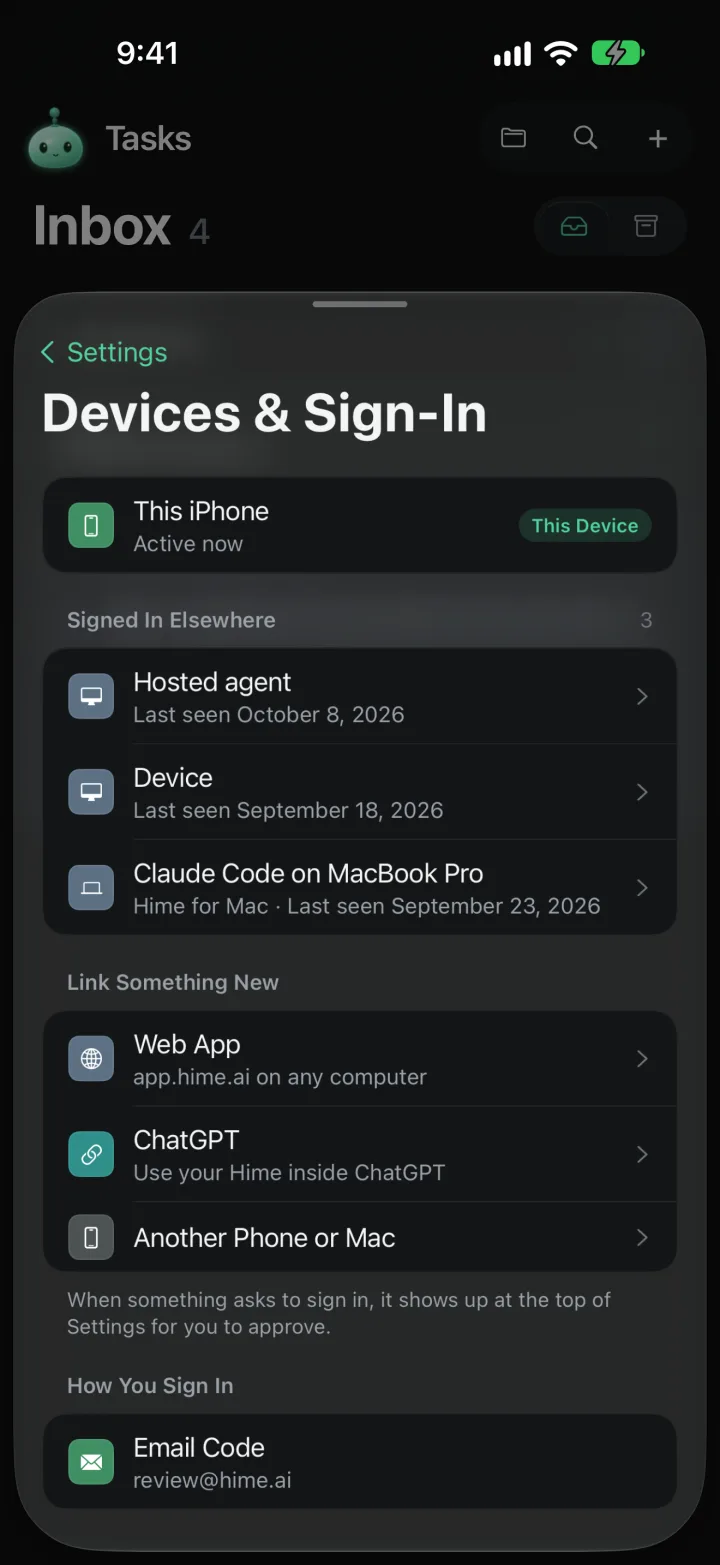
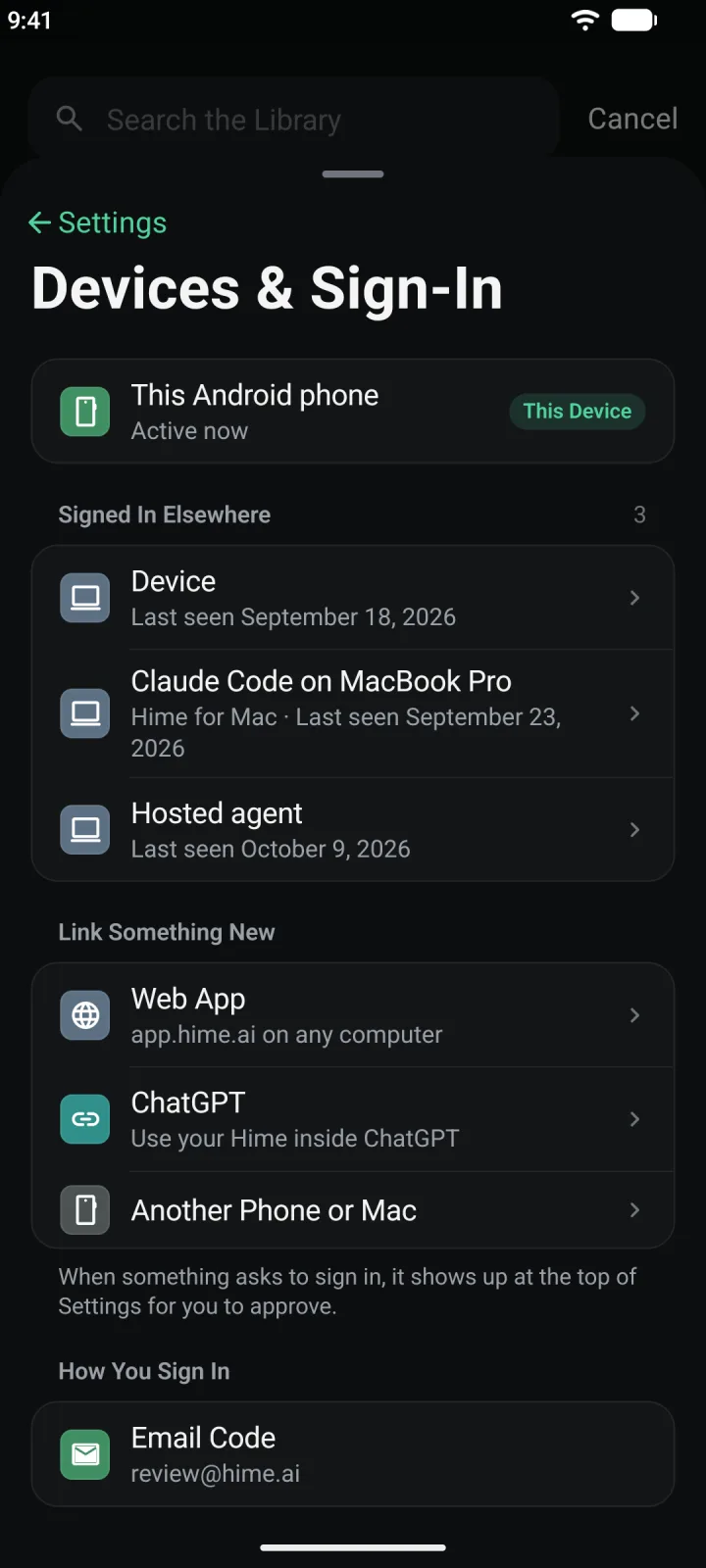
- This device is at the top, marked This Device.
- Signed In Elsewhere lists every other device, agent and browser that can reach your account, with when it was last seen. Tap one to open it. Swipe it, or tap Sign Out This Device on its page, and it is signed out of your Hime straight away.
- Link Something New adds the Web App, ChatGPT or Another Phone or Mac.
- How You Sign In shows Email Code with your email, and Recovery Words if you have them.
When something asks to sign in, a card shows at the top of Settings. Tap Approve only for something you started.
Link the web app, ChatGPT or another device
Every link works the same way. The new place shows a QR code and six digits. Your signed-in phone confirms them. The web app needs Plus or Pro. On Tasks only, the Web App row says “Comes with Plus or Pro” and opens the plans.
Pick what to link
On your phone, open Settings, then Devices & Sign-In. Under Link Something New, tap Web App, ChatGPT or Another Phone or Mac.
Show the code on the other screen
- Web app: on your computer, open app.hime.ai and choose Use my phone.
- ChatGPT: in ChatGPT, open the Hime app and choose Use my phone.
- Another phone or Mac: on the new device, open Hime, tap Sign in and choose Scan from another phone.
The other screen now shows a QR code and six digits.
Scan the code, or type it
Point your phone’s camera at the QR code. Hime opens with the code filled in.
Can’t scan? Type the six digits under Or Type the Code. On the web sign-in screen you can also choose Ask My Phone and type your email. The request then shows up at the top of Settings.
Check the digits and add it
Hime asks Add This Device? and says it will see everything in your Hime. Only continue if the other screen shows the same six digits. Then tap Add Device.
Hime says “Added. It’s signed in now.”
How you sign in
Hime has no passwords. You sign in with a code sent to your email. The code is the account, so the email you use matters.
How You Sign In shows what your account has.
- Email Code shows the email on your account. Under Your Account, tapping Email opens this screen.
- Add Email appears if your account has only recovery words. Add an email, and a new phone can sign in with a code from your inbox.
- Recovery Words shows your 12 words, if you have them. Older accounts use these. They also open the passwords you saved, on a new phone.
If you have both an email and recovery words, you can still get in with either one if you lose your phone. Keep your words somewhere safe.
Sign in on a new phone
Install Hime and open it. On the first screen, tap Already use Hime? Sign in.
A menu opens with three ways in.
- Email: type your email and tap Send code. Enter the code from your inbox. No password.
- Scan from another phone: the new phone shows a QR code. On a phone that is already signed in, follow the link steps above and choose Another Phone or Mac. The new phone signs in as soon as you add it.
- Recovery words: type the 12 words from an older account.
Android goes straight to the email screen. It says “Welcome back”. Type your email and tap Send code, then enter the code from your inbox. If you have recovery words instead, tap Use a recovery phrase instead and type the 12 words.
Privacy and data
Open Settings, then Privacy & Data.
- Archived shows how many things you have archived and opens them.
- Privacy Policy and Terms of Use open hime.ai in your browser.
- Delete Account… starts deleting your account.
Sign out
Tap Sign Out at the bottom of Settings, then Sign Out again to confirm. This phone forgets the account. Your tasks and notes stay in your account.
To get back in, use your email, your recovery words, or another phone that is signed in. If you have recovery words, the confirmation has a Show Recovery Words button. Save the words first if you only have words and no email.
Delete your account
Cancel any subscription
Deleting your account does not cancel what you pay for. Cancel under Plan first, as described above.
Open Delete Account
In Settings, open Privacy & Data and find Delete Account… near the bottom. Tap it.
Confirm
Hime asks Delete This Account? and says everything in it, your tasks, notes, events and files, is deleted 30 days from now. Tap Delete Account.
You have 30 days to change your mind. Signing back in before then cancels the deletion. You can also open Privacy & Data and tap Cancel Deletion.
You can also ask by email without the app. The delete your account page has the details, and says what is kept and what is not.