DocsAgents
Talk to your agent
Message your agent, watch it work, undo what it changes, and call it live.
Your agent is the part of Hime that does things for you. You ask in plain words. It changes your tasks, calendar and notes, looks things up, and stops to ask you when it needs a decision.
This page is about using it day to day. It works the same way for Hermes on Pro and for your own Claude Code or Codex on Plus. The one difference is where you type.
Open the chat
Go to the Chat pane
The Chat pane is the page to the right of Today. Swipe left from Today to reach it. Or tap the mascot at the top left, which takes you straight there.
The title is your agent’s name, with a small arrow. Tap it to open Your bots, where you can switch bots or tap New bot….
Touch and hold the mascot instead and Settings opens.
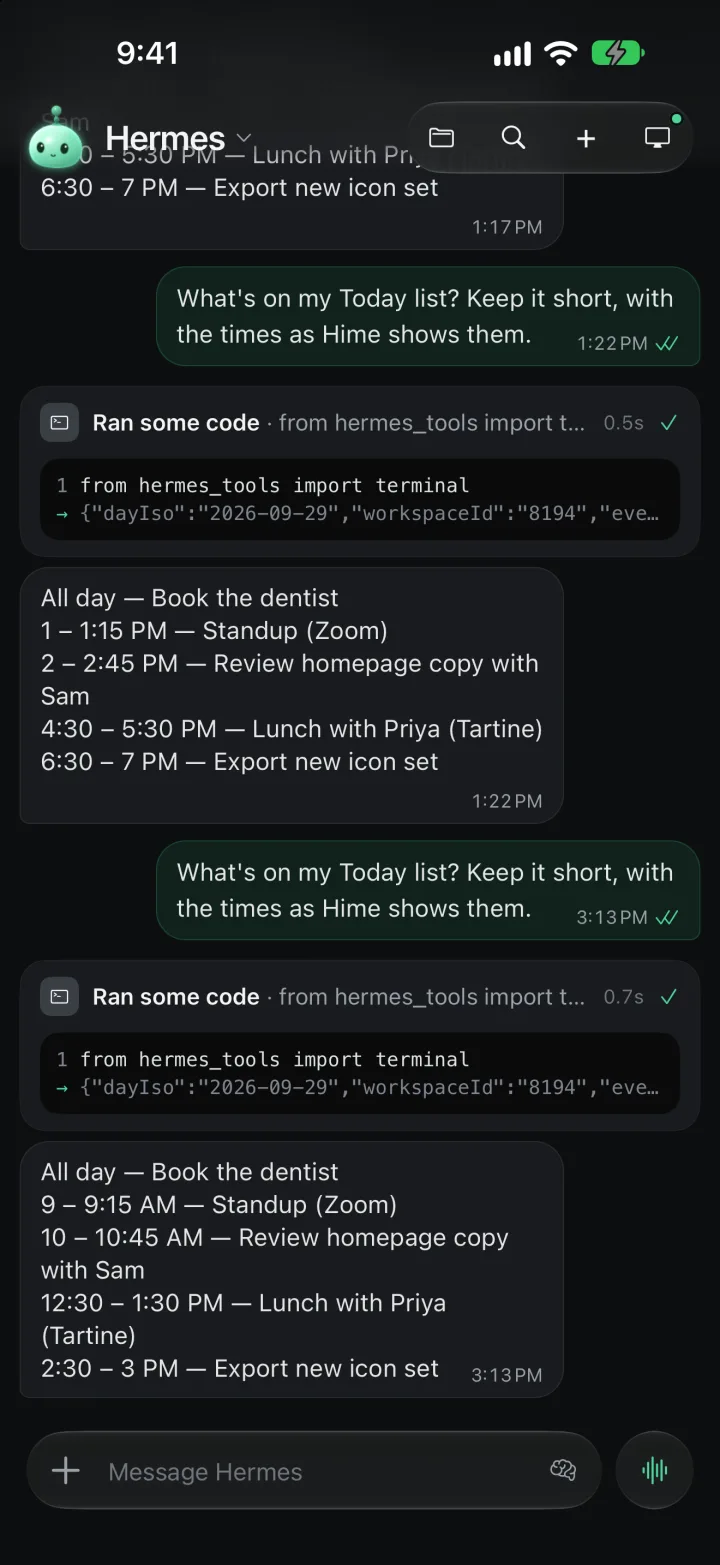
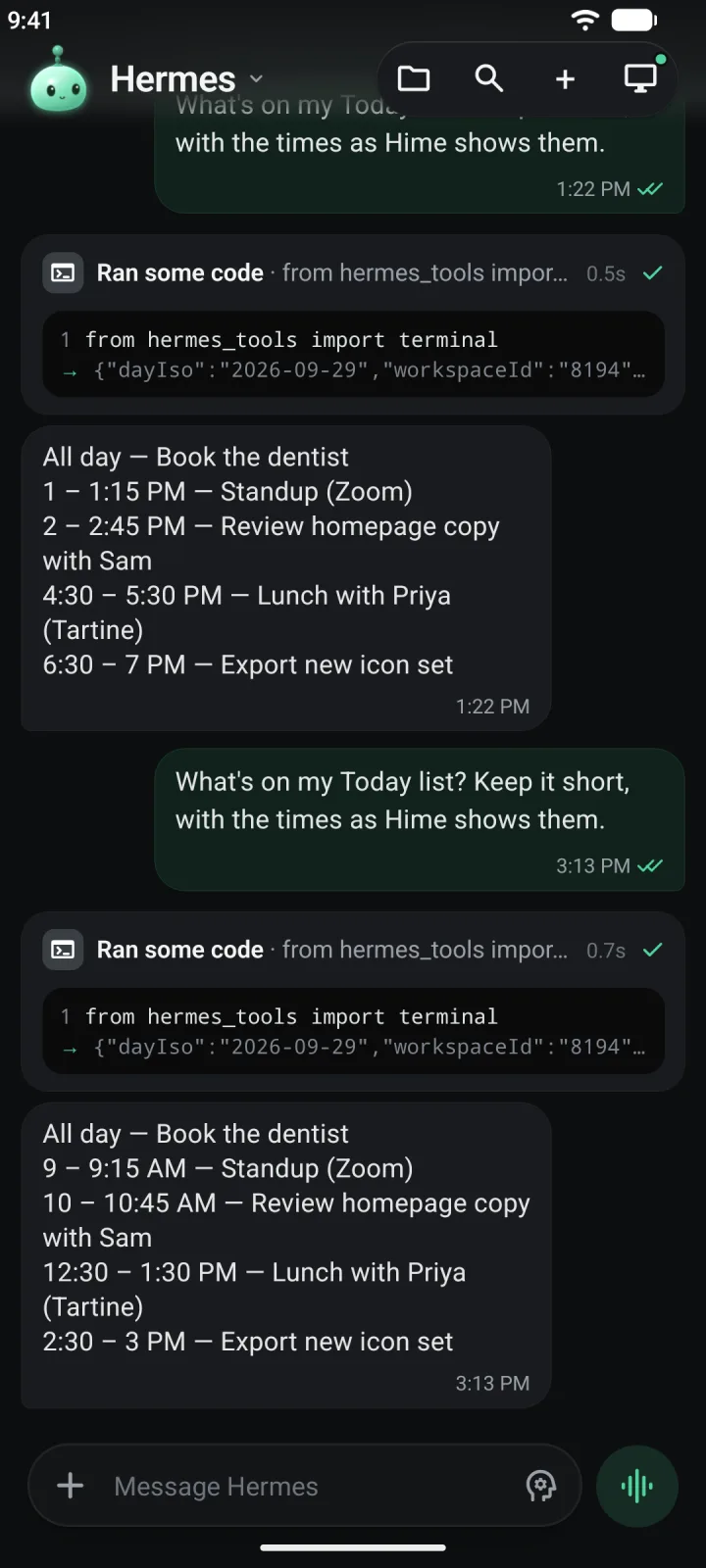
Use the buttons at the top right
The four round buttons are Library, Search, New task and, in the Chat pane, Open desktop. A small mint dot on the desktop button means your agent’s computer is up.
An empty chat asks What should Agent take on? and, above the message bar, suggests three things picked from your day. Tap one and it goes into the message bar without sending, so you can change it first.
Send a message
Write it in the message bar
The bar says Message Hermes, or your agent’s name if you renamed it. Type what you want, the way you would tell a person: “Move gym to Friday morning” or “What’s on my plate tomorrow?”
Tap the round button
Once you have typed something, the round button on the right becomes Send. With an empty bar it is the voice button instead. See Talk instead of typing.
Add a file if it helps
Tap + at the left of the bar for Files, Photos & Videos or Library. The files sit in the bar until you send them. Tap the remove button on a file to take it back out.
If your agent is busy, you can still type. Your message goes to the task it is working on as guidance, and the round button keeps Send with a small stop button beside it. With an empty bar, the round button turns into Stop. Tap it and your agent stops where it is.
If the chat says Agent isn’t connected, your messages wait there until its computer is running. Nothing is lost.
If a reply fails, tap Try again under it. It is greyed out while another task is still running.
Press and hold a message to Copy message, Select text or Hide from chat.
Watch it work
While your agent works, you see what it is doing as it goes. Quiet steps are folded into one line, like Searched and read 3 pages · 8 steps. The line stays open while the work runs and closes when it finishes. Tap it to open or close it yourself.
When your agent browses a website, its card shows the address and the last step. Tap Watch to open its desktop, or Take over to drive the browser yourself. Its computer says more.
Changes and Undo
When your agent changes something of yours, the chat shows a card for it: a task made, an event scheduled, a note saved, a file attached. The change has already happened. The card is the receipt.
Read the card
The title says what it did, and the detail says to what. Tap the card to open the item in Hime. On a task, tick the checkbox to complete it yourself.
Tap Undo to reverse it
Undo sits at the right of a card’s footer. The card strikes through and shows Undone. On a few cards the button is worded for the change, like Move back or Reopen.
Undo a whole batch at once
Three or more changes of one kind, like setting up your Saturday, arrive as one card with every row in it. Undo all reverses all of them. Press and hold a single row to undo just that one.
Undo is there for 10 minutes. After that the button leaves the card, but you can still press and hold the card and choose Undo from its menu. Hime refuses it if the item has changed since.
Undo works in Hime itself, not by asking the agent. Your agent hears about it on its next turn, so it does not quietly do the same thing again.
If a step fails, its card shows what went wrong with Retry and Open.
When it needs you
Sometimes your agent stops and waits for you. It shows up as a card in the chat, and as a mint dot on the mascot when something is waiting in Settings.
Answer a question
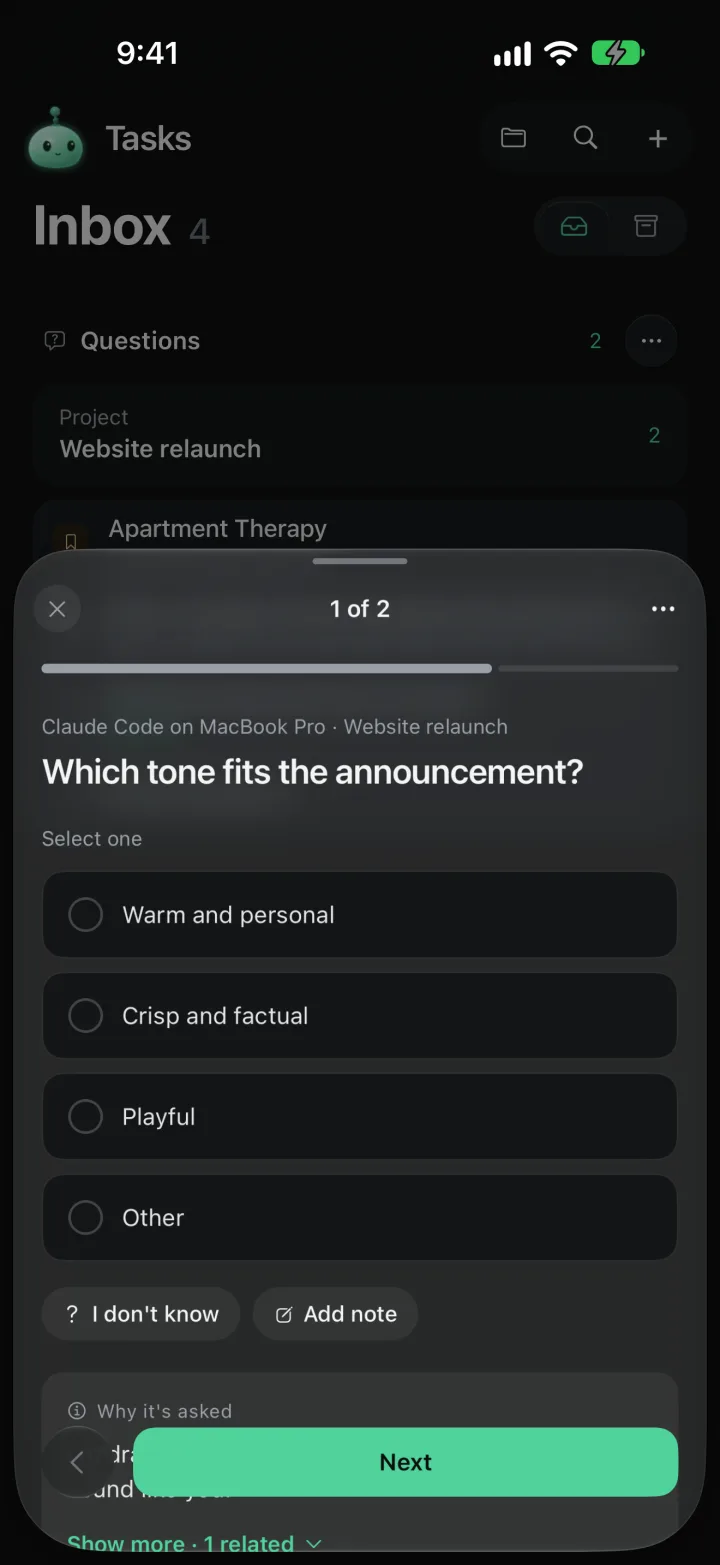
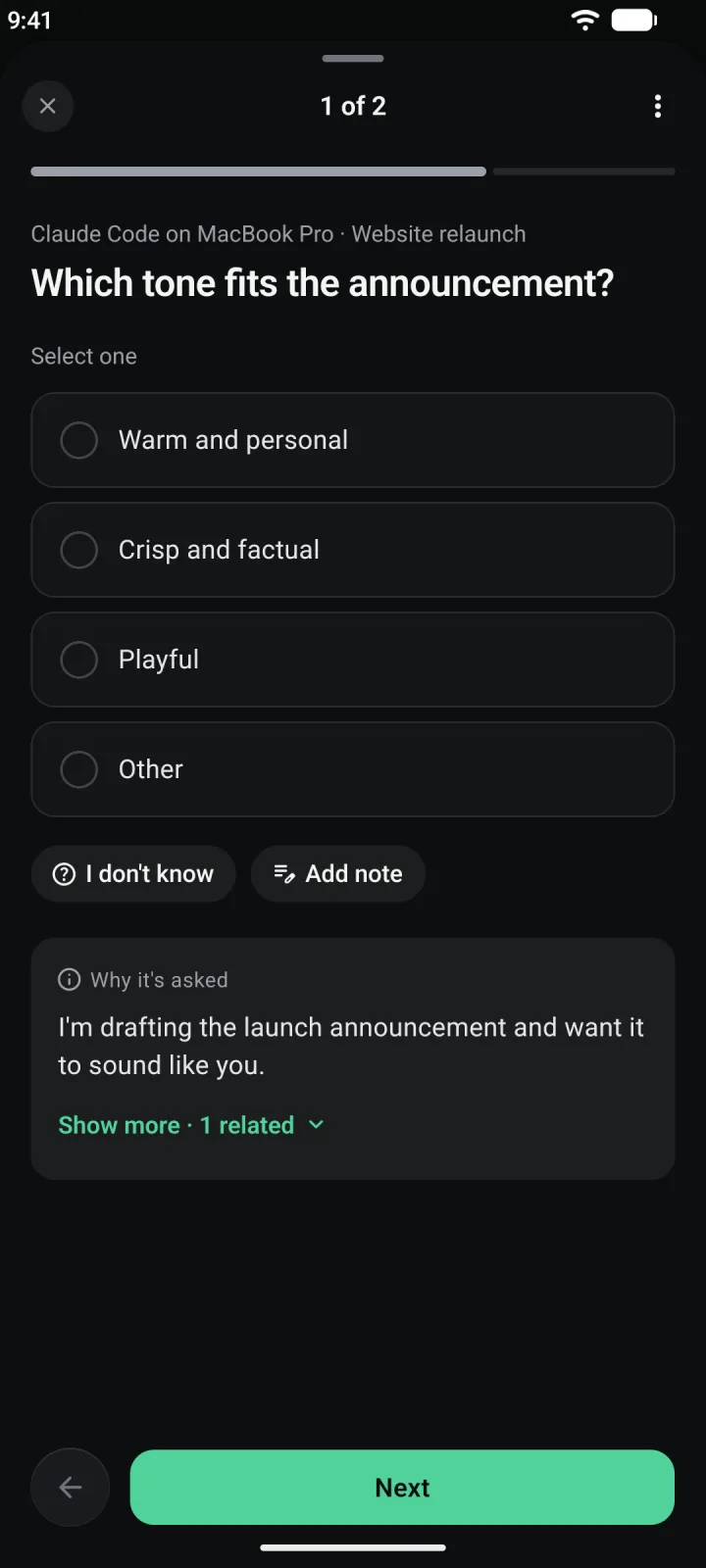
A question card asks you something with options to pick from. Choose one and tap Answer, or tap Skip. Tap the card’s title to open the whole question instead.
Questions are also collected in Backlog, under Questions. In the full question you can pick I don’t know or Add note, and read Why it’s asked.
Share a login or a key
A warm card says Equinox login needed, or whichever site it is, with the minutes left. Tap Share login to let your agent use the one you saved, or Deny to say no.
The value stays in your vault and never reaches the agent’s model.
Or type it in yourself
Tap the card to open the request, titled Equinox login with the site’s address. If you already saved that login, you will see Use saved and a Share button. Otherwise fill in the fields and tap Save. Tap Decline to refuse.
Requests run out after a short while. If one has, it says Request Expired, and your agent can ask again.
If a login card scrolls out of sight, a small pill at the bottom of the chat, like Equinox login needed · 14 min, takes you back to it.
Everything your agent has been given lives in Settings. Press and hold the mascot, tap Your Agent, then Passwords & Keys. Requests that are waiting come first. Passwords and keys are encrypted on your devices, so each device needs setting up once before your agent can use them.
Choose the model
The model is the AI your agent thinks with. You pick it right from the chat, and the change applies to its next reply.
Tap the brain button
It sits at the right end of the message bar. The menu is titled Model and effort.
Pick a model, then an effort
Under Model, tap an account, like ChatGPT, to see its models, and tap one. Under Effort choose Low, Medium, High or Max. Higher effort thinks longer and answers more carefully.
See every model
Tap Other models… for the Model sheet. It says “For Hermes, from your connected AI accounts” and lists them by account, with a check beside the current one. At the bottom, AI Accounts is where you add more.
The menu only offers models from accounts you have connected. If it shows No models yet, follow Connect ChatGPT first.
Talk instead of typing
With an empty message bar, the round button is the voice button. You have two ways to use it.
Send a voice message
Press and hold the round button and talk. A bar drops from the top with your words as you say them. Let go to send. Drag down and let go to cancel.
In Settings, Your Agent has a Speak Replies switch under Voice. It makes your agent read its answer aloud after you send a voice message.
Or turn it into a call
While you hold, slide up. The hint says Let go to call. When you let go, the words you have said so far go with it and the live call begins. A quick tap on the button starts a call too.
After a voice message, a short written reply comes back in the bar with Undo for the change it made and Talk more, which starts a call.
Call your agent
A live call is a spoken back-and-forth. Your agent hears you, answers out loud, and does the work while you talk.
Start the call
Tap the round button with an empty message bar. The status reads Calling Hermes…, then Listening with the time on the call.
Talk, or just say it
Say what you want. The bar shows your last words and your agent’s answer, and a status such as Thinking or Speaking. While it works through a list, it says how far along it is, like “1 of 3”.
If it asks you something, the answers appear as buttons. You can tap one or say it.
Mute, undo, or end it
Mute turns your microphone off. Undo shows while a change is fresh and reverses it. End hangs up.
Tap the expand button at the top right of the bar for full screen. Pull the grabber at the bottom down to read the transcript.
When the call ends, the chat shows a small note with how long it lasted, and what you said is saved there. If the line drops, the bar says Connection lost with Close and Call again. If another app takes the microphone, the call pauses and picks up again when it gives it back.
Its computer
Pro Hermes has a computer of its own in the cloud. It browses, runs code and keeps files there, even while your phone is off. You can look over its shoulder.
Open the desktop
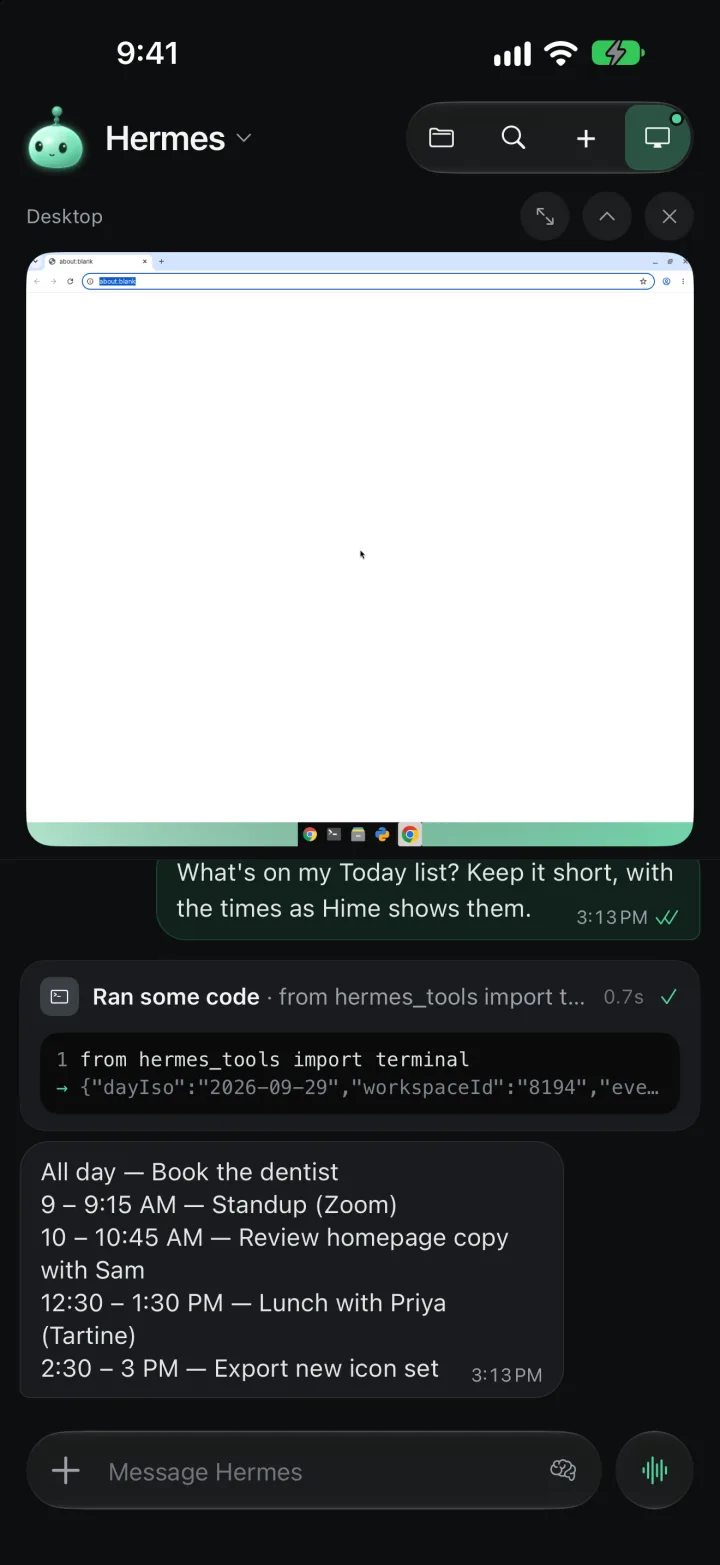
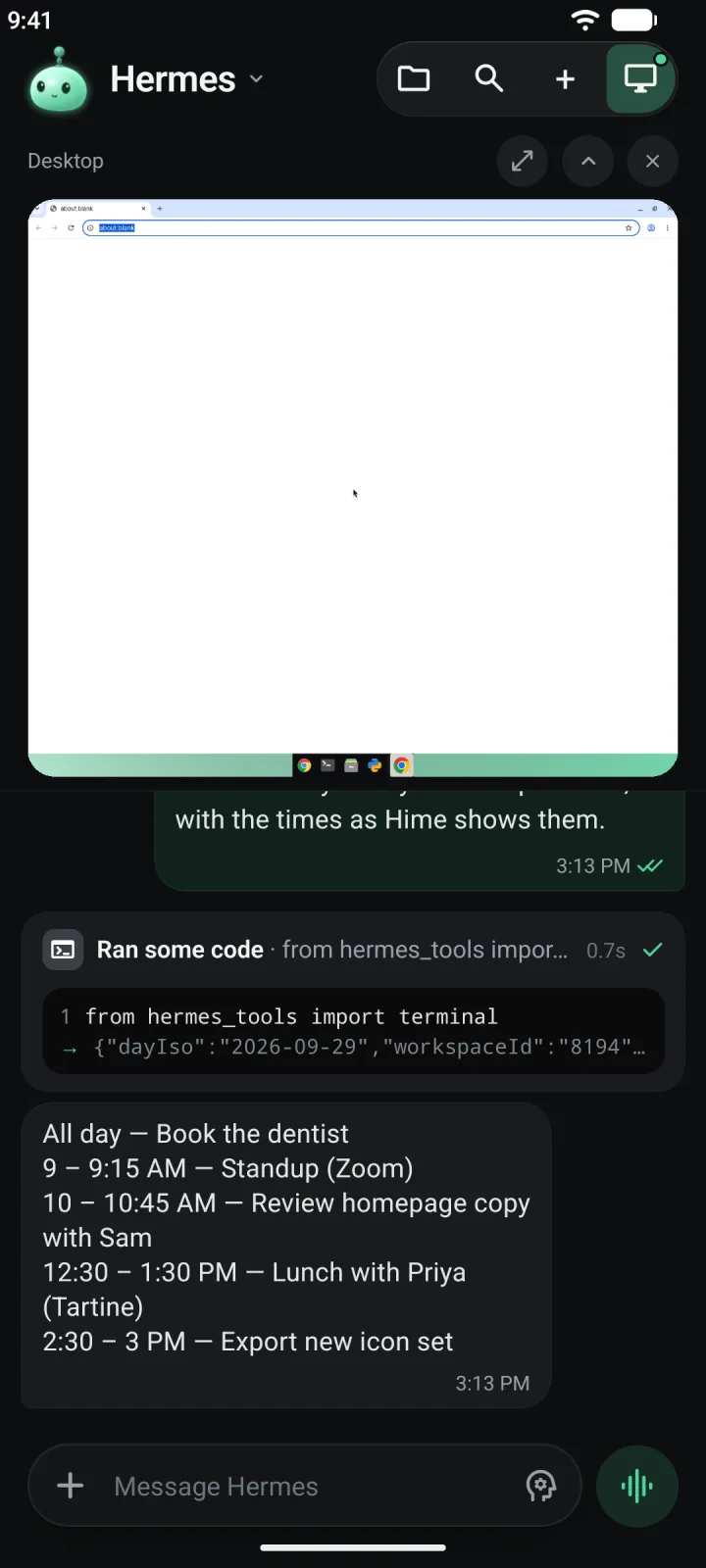
In the Chat pane, tap Open desktop at the top right. The desktop appears above the conversation with a Desktop label. Tap the button again, which now says Close desktop, to put it away.
It also opens on its own when a reply starts browsing, once per task. If you closed it or folded it, it stays that way.
Size it
Three small buttons on the desktop strip: Open the desktop full screen, Fold the desktop down to a single row, and Close the desktop.
Take over
While your agent is using the desktop, tap Stop and take over. It stops what it is doing, and your touches go through to the screen. When it is idle there is nothing to take over, and the picture already answers when you touch it.
Full screen has its own menu. View Only and Control choose whether your touches do anything. Fit Width and Actual Size change the zoom. Reconnect reconnects if the picture freezes, and Open on Web opens the same desktop in a browser. Agent Computer opens its settings.
If you are not on Pro, the desktop shows a card with See Pro.
Make it yours
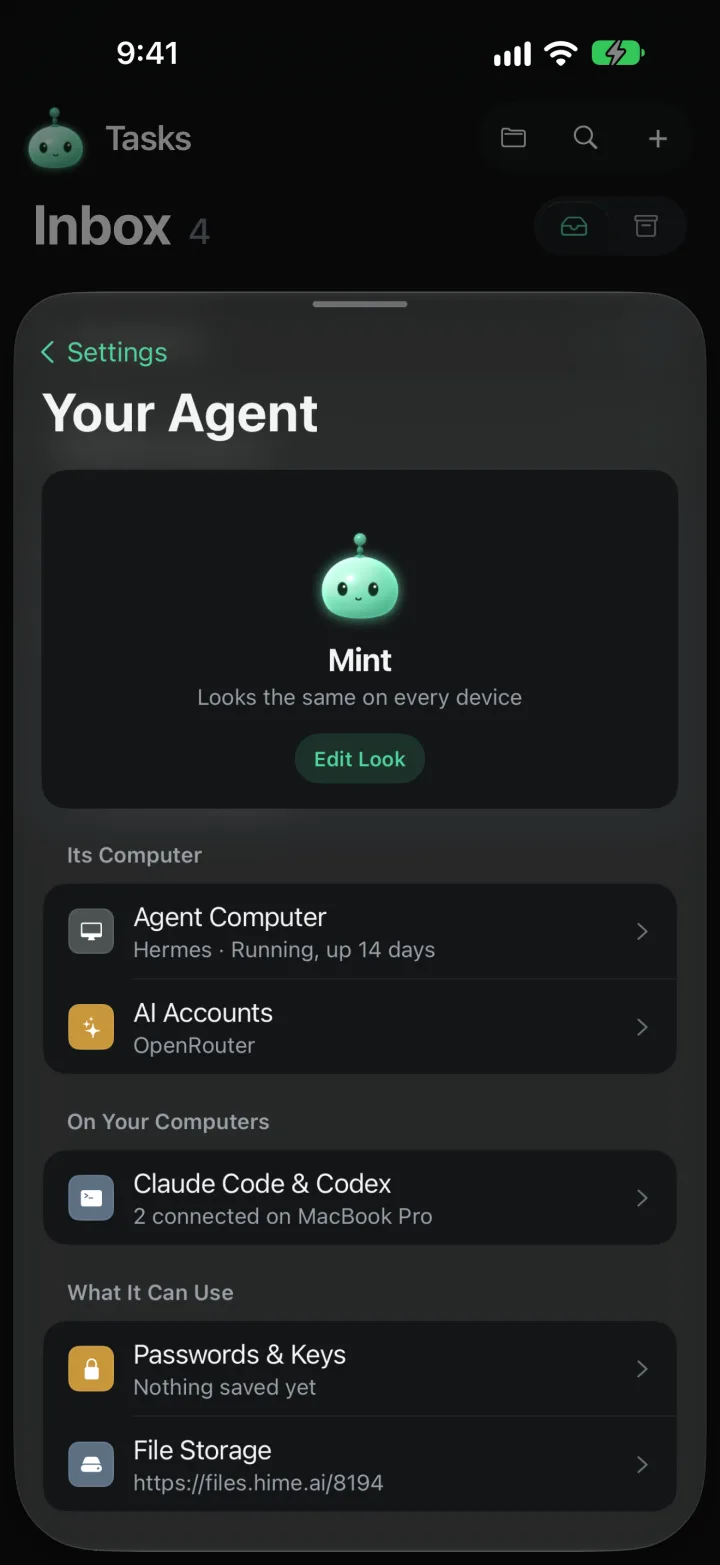
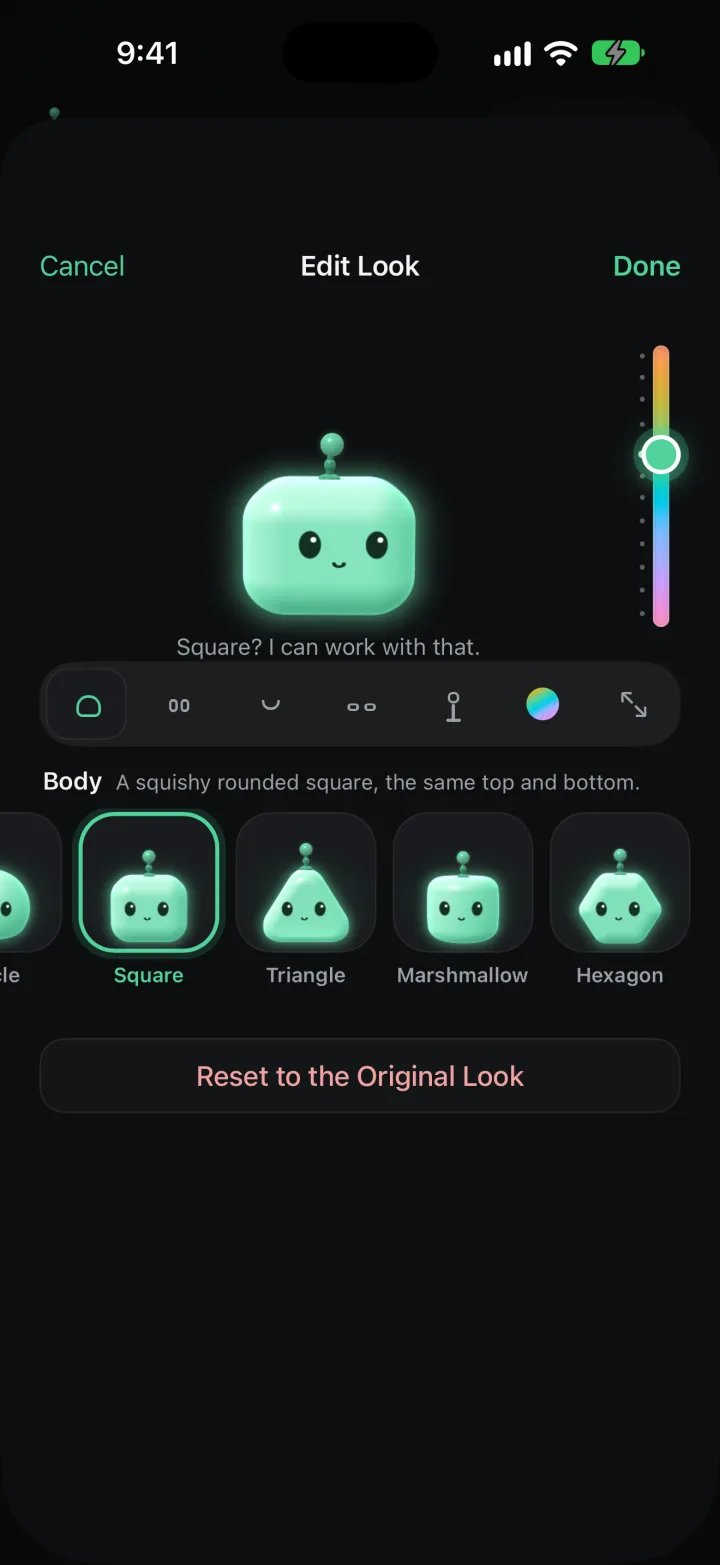
The mascot at the top left is your agent. You can change how it looks, and the whole app takes its color from it. The look is saved to your account, so it is the same on every device.
Open Your Agent
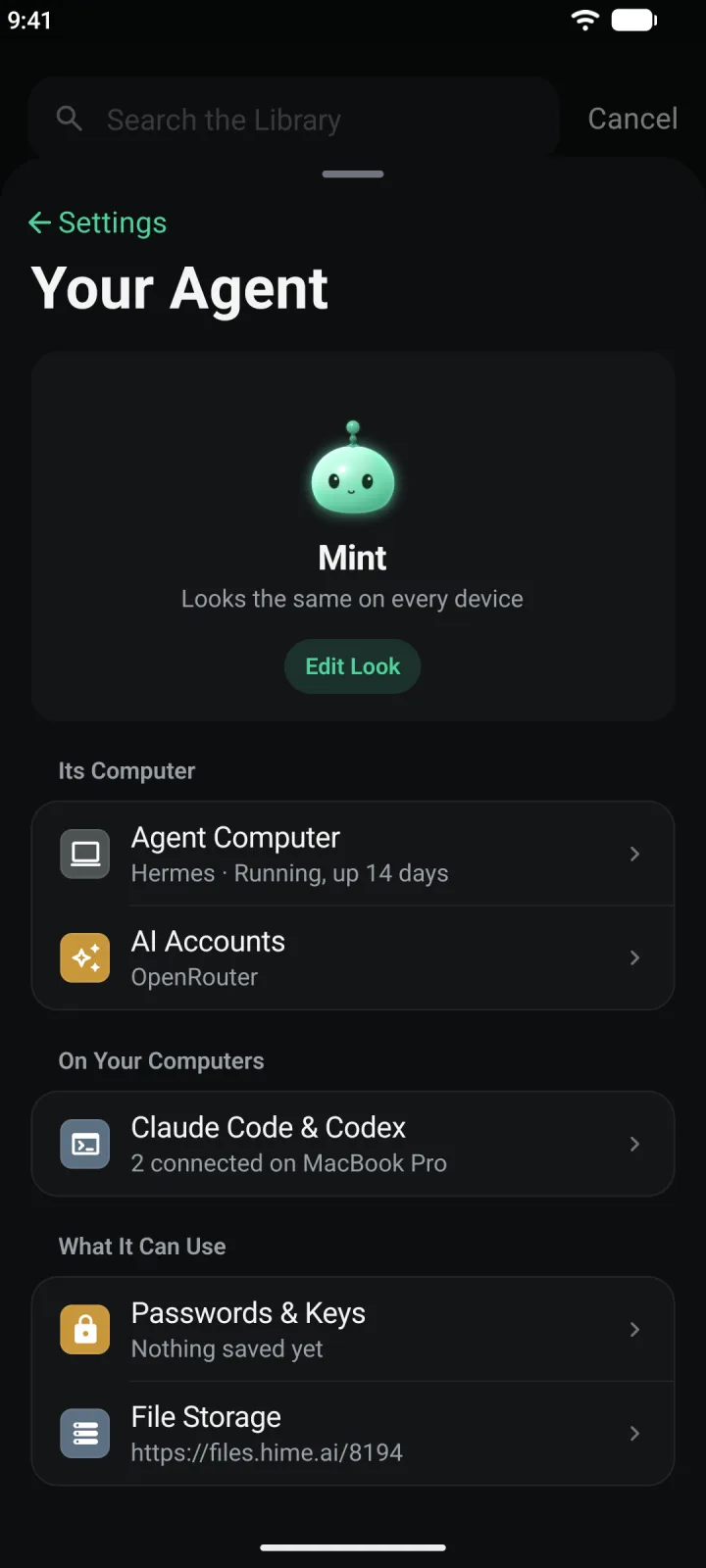
Touch and hold the mascot to open Settings, then tap Your Agent. Your agent is at the top with its color’s name, and Looks the same on every device underneath. Tap Edit Look.
Pick a part
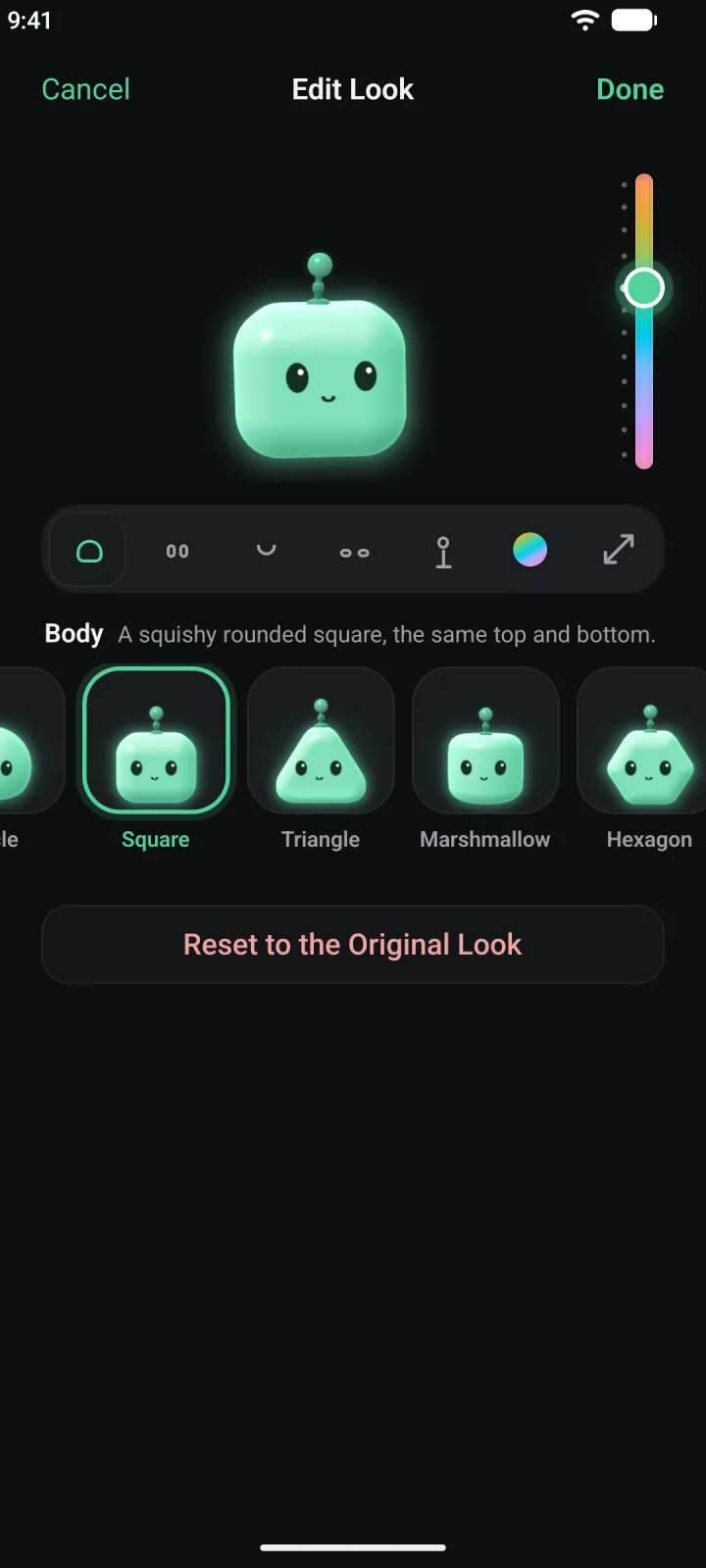
A row of tabs runs under your agent: Body, Eyes, Mouth, Cheeks, Antenna, Color and Shape. Open one and tap an option. Bodies are Original, Circle, Square, Triangle, Marshmallow and Hexagon. Your agent reacts as you choose.
Shape has sliders to stretch and scale each part, such as Body width, Eye size and Antenna length.
Choose a color
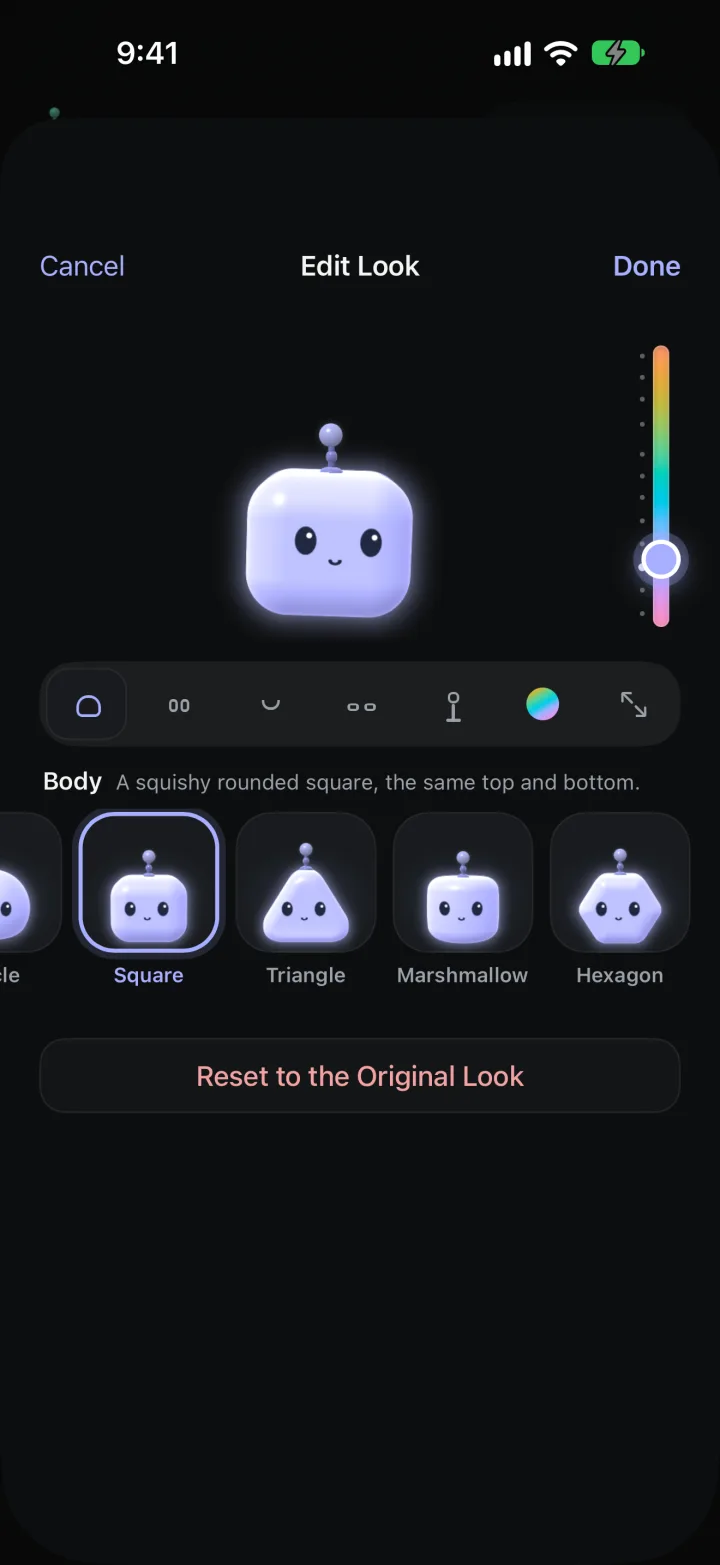
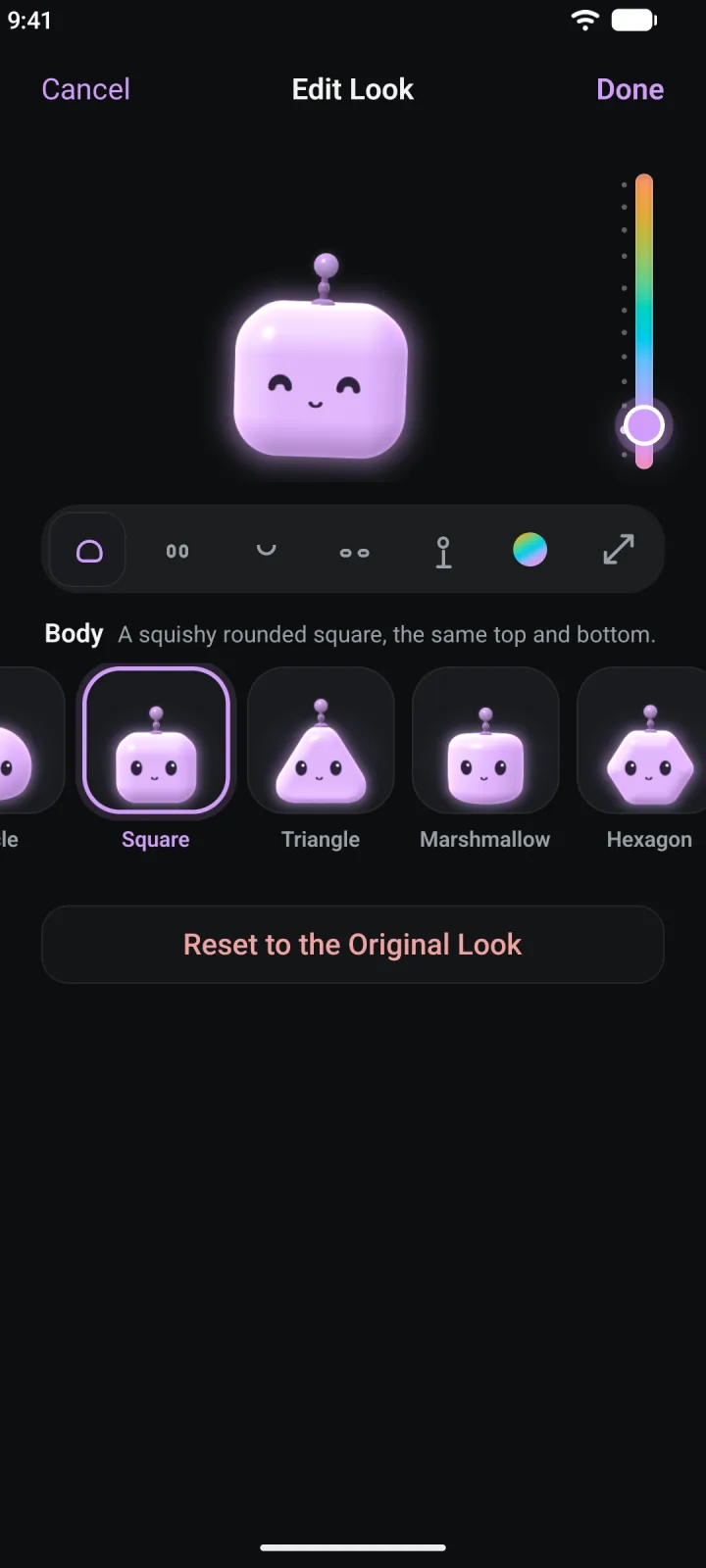
Drag the color rail at the right of your agent, or open the Color tab. The buttons and accents in the screen change with it as you move. The tab names your color and the app icon it matches.
Tap Done
Done saves the look. Cancel, or going back, asks Keep changes? with Keep changes and Discard. At the bottom, Reset to the Original Look puts back the Mint mascot after you confirm.
If you turned on App Icon Matches in Appearance, the icon on your home screen changes to the nearest color when you tap Done. iOS asks you to confirm.
On Plus: Claude Code and Codex
Plus With your own agent, the conversation happens in the tool you already use, on your computer. Hime does not have a chat for it. What changes is where you see its work.
- Its changes are already in your app. Tasks it makes and events it schedules appear in Today and Backlog. You can edit or archive anything it did by hand.
- Its questions come to your phone. They sit in Backlog under Questions, labeled with the agent and the computer, like “Claude Code on MacBook Pro”. Answer there and it carries on.
- Its login requests wait in Settings. The mascot shows a mint dot. Open Your Agent and the requests are at the top, with the same Share, Save and Decline choices described above.
Your computers are listed under Claude Code & Codex in Your Agent. To add one, follow Connect your agent.