DocsUsing Hime
Today
Your day on one timeline. Events and scheduled tasks, the time now, the weather, a note for the day, and your phone's calendar kept in step.
Today is the middle of Hime. It shows what you have planned for one day, from midnight to midnight, and it opens on the time it is now.
Events and tasks you have scheduled live side by side on it. You can move them with your finger, add to them, and ask your agent to change them.
Find your way around
Hime has three screens, left to right: Tasks, Today and Chat. Hime opens on Today.
- Swipe from the edge of the screen to go to the next one. On Today only the outer edge pages, because the middle belongs to the timeline and the week above it. On Tasks and Chat you can swipe from anywhere.
- Tap the mascot at the top left to open Chat. Press and hold it to open Settings.
- Tap the folder button at the top right to open the Library, a sheet over the screen. The magnifier next to it opens the same sheet with search ready.
On Android, Back from Tasks or Chat brings you home to Today. The edge that pages is wider, so a swipe that starts just inside the screen’s edge works.
Read the timeline
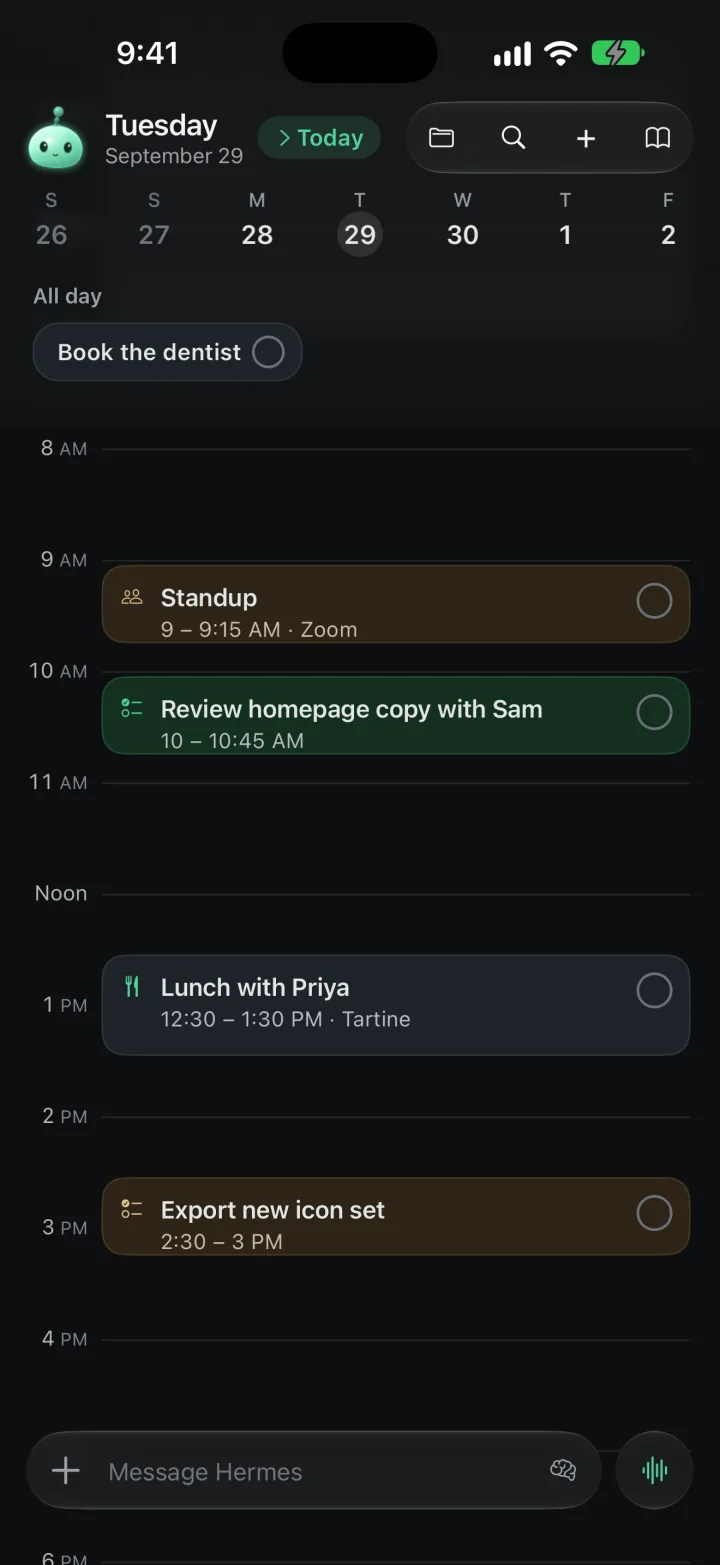
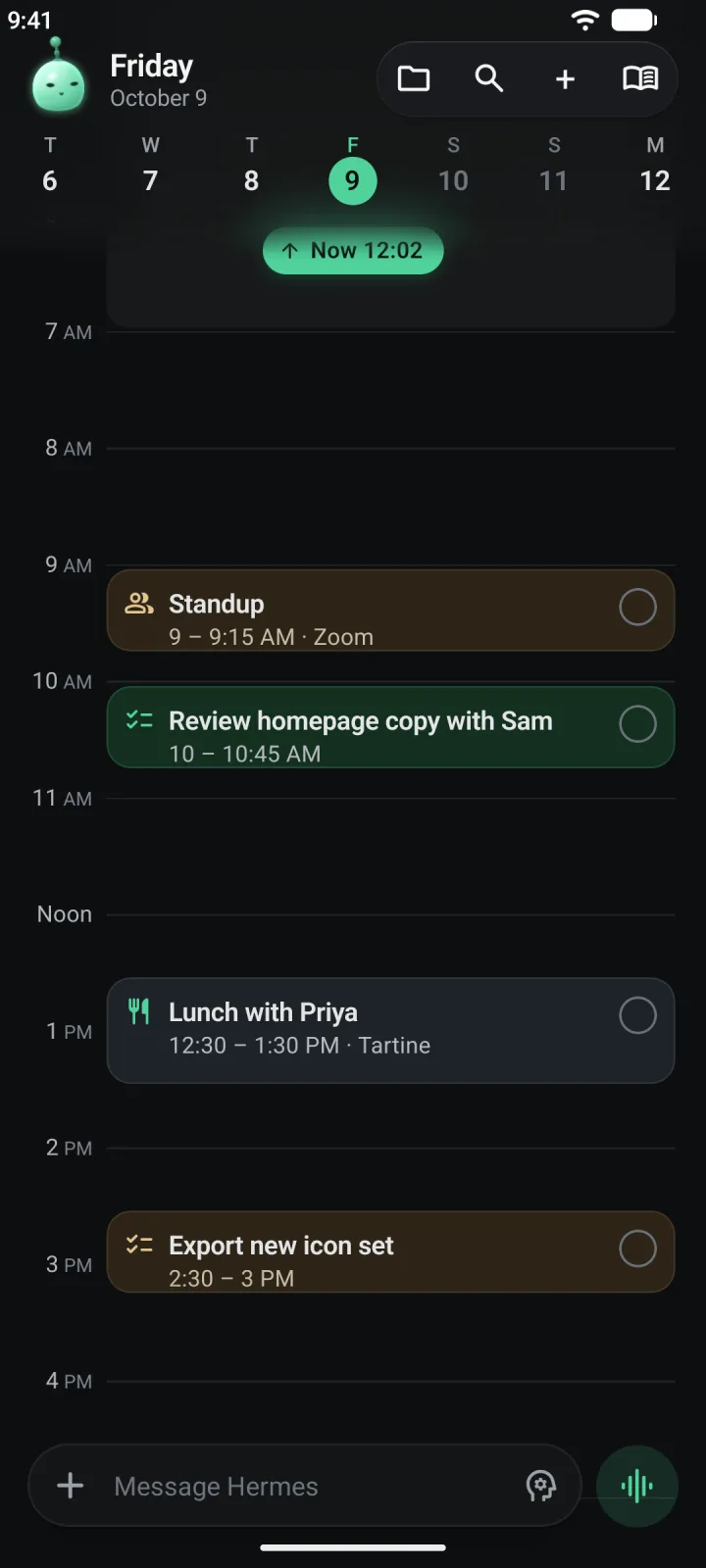
From the top down you will see:
- The date. The weekday over the full date, with the buttons to its right: Library, search, New task and the Journal.
- The week. One cell for each day. The day you are looking at is the one with the circle.
- All day. Anything that belongs to the day but not to a time, as chips. Tap a chip to open it, or tap its circle to mark it done.
- The timeline. Every hour from midnight to midnight. Scroll it up and down.
Each plan is a block with its title, its time and its place, if it has one. A small picture on the left says what kind of plan it is. The circle on the right marks it done. Plans that overlap sit next to each other.
Events and scheduled tasks look the same on purpose. Both are things you plan to do on that day.
The time now
On today, a line runs across the timeline at the current time. It moves as the minutes pass. Today opens scrolled to it. Other days open on their first plan, or at 8 AM if the day is empty.
Scroll away from now and a small button appears at the edge, such as Now 11:24 with an arrow. Tap it to glide back.
Weather
The top of the day, from midnight to 7 AM, is a band called A quiet start. If you have chosen a city and nothing is planned in that band, it shows the weather there. For today you see the temperature now and the day’s high and low. For other days you see the high and the low, and a few hours of the day.
With no city the band stays quiet. Choose one below.
Move between days
The week ribbon is how you change day.
- Swipe it sideways to glide through the days. Tap a day to go straight to it.
- Keep your finger down and pull it down a little. The ribbon steps up from days to weeks, then months, then years, so you can reach a date far away in one drag.
- Tap the date at the top to scroll back to now. When you are on another day, tap the Today button beside the date to come back. Tapping the date itself does the same.
The date at the top follows the ribbon while you drag, so you can see where you will land.
Add something to a day
- A quick event. Tap the + at the top right. It opens a small card for a task. Tap Task in its corner and choose Event. Type what is happening, tap the chip with the day and time to change them, add a Place or a note if you want, then press Return. Today jumps to that day and a message says Event added.
- An empty slot. On an open day, tap + Add a plan in the dashed slot. More on that below.
- A task. Schedule it onto a day, as in the next section.
- Your agent. Say what you want in Chat, such as “Put lunch with Priya on Friday at 12:30.” More below.
Schedule a task onto Today
Tasks that have a day show up on Today. Tasks that are waiting in Inbox or Backlog do not.
Find the task
Go to Tasks. Press and hold the task, then tap Schedule.
Pick a day
Choose Today, Tomorrow or Next Week, or tap Pick a Date… for any other day.
Give it a time if you want one
A task with only a day appears under All day. To give it a time, open it from Today and change it on the When pill. With a time it becomes a block on the timeline.
You can also open a task and tap its When pill. The menu there has Inbox, Backlog, the quick days, Pick a Date… and Remove date, which sends the task back to Inbox.
Open a plan
Tap a block and it opens in place as a card. The buttons at the bottom are Done, Move and Inbox. The ••• menu has Archive.
On an event, tap the When pill, or Move, to change the day and time. Every time you pick saves on its own. You can also add a note, and if the event has a place, tap Directions.
A task opens with its own contents, the same as in Tasks.
Move a plan by dragging it
You can change a plan’s time without opening it. This works for events and tasks.
Press and hold the block
Hold for about half a second. You feel a tap and the block lifts.
Drag it up or down
It moves in 15 minute steps, and a small pill in the left margin shows the time. Near the top or bottom of the screen the day scrolls under your finger.
Let go
The new time saves. To send it to another day instead, drag the block up over the week and hold it on a day for half a second. The ribbon switches to that day. Let go there.
After you let go, the block stays selected, with a small handle on its top and bottom edges. Drag a handle to change when it starts or ends. While you drag, a line under the block reads something like Ends 11:45 AM · 1 h 45 min. A plan can be as short as 15 minutes.
Tap an empty spot on the timeline to put the block down.
If you press and hold and then let go without moving, a menu opens instead. It has Mark Done (or Mark Not Done), Move… and Move to Inbox.
An empty day
When a day has nothing on it, Today offers a dashed slot instead of a blank page.
- On today, it starts at the next half hour and is named for the part of the day: Your morning is open, Your afternoon is open or Your evening is open.
- On a day ahead, it starts at 8 AM and is named for the day: Saturday is open.
- On a busy day, it offers the evening, from 6 PM or just after your last plan. If your last plan runs to 7:30 PM or later, there is no slot.
- Past days have none.
Tap + Add a plan and the New event card opens with that time already chosen. Tap From Backlog and Hime takes you to Tasks, where you can schedule a task onto the day.
The note for the day
Every day has a page to write on, which the app calls the Journal.
Tap the book button, the last one in the row of buttons at the top. Its name is Show Journal. The timeline turns over and the page is on the back. Tap the calendar button that takes its place, Show Schedule, to turn it back.
Write as you like. It saves as you type. A quiet Saved shows for a moment, and if you are offline it says Offline and you can only read. The prompt depends on the day: What’s on your mind today?, Plan for tomorrow…, Write about yesterday….
The ribbon still works while the page is showing. Change day, and the page changes with it. Your agent can add to the page as well.
Connect your phone calendar
Hime can keep your events in a calendar on your phone, so they show up in the Calendar app too.
Open Calendar & Today
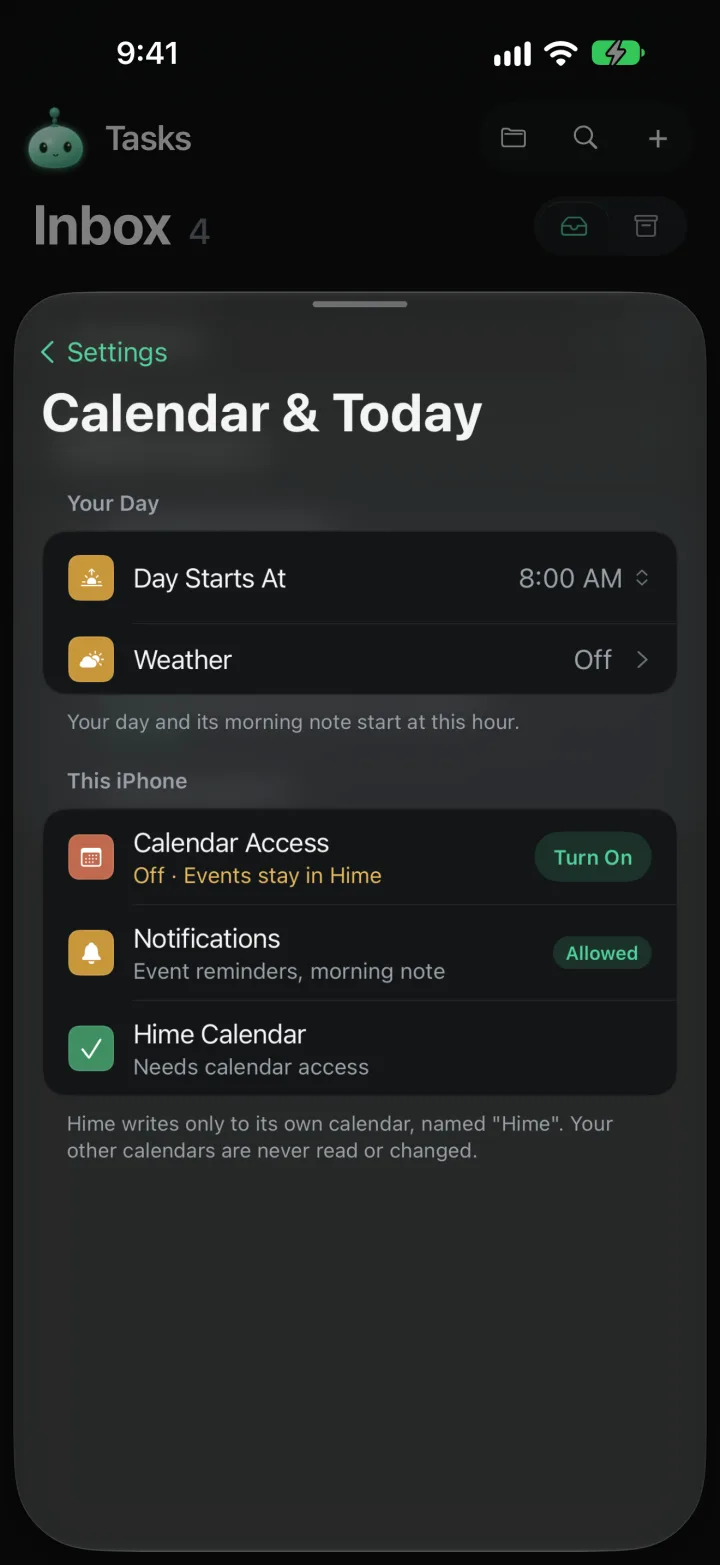
Press and hold the mascot at the top left to open Settings. Tap Calendar & Today.
Turn on calendar access
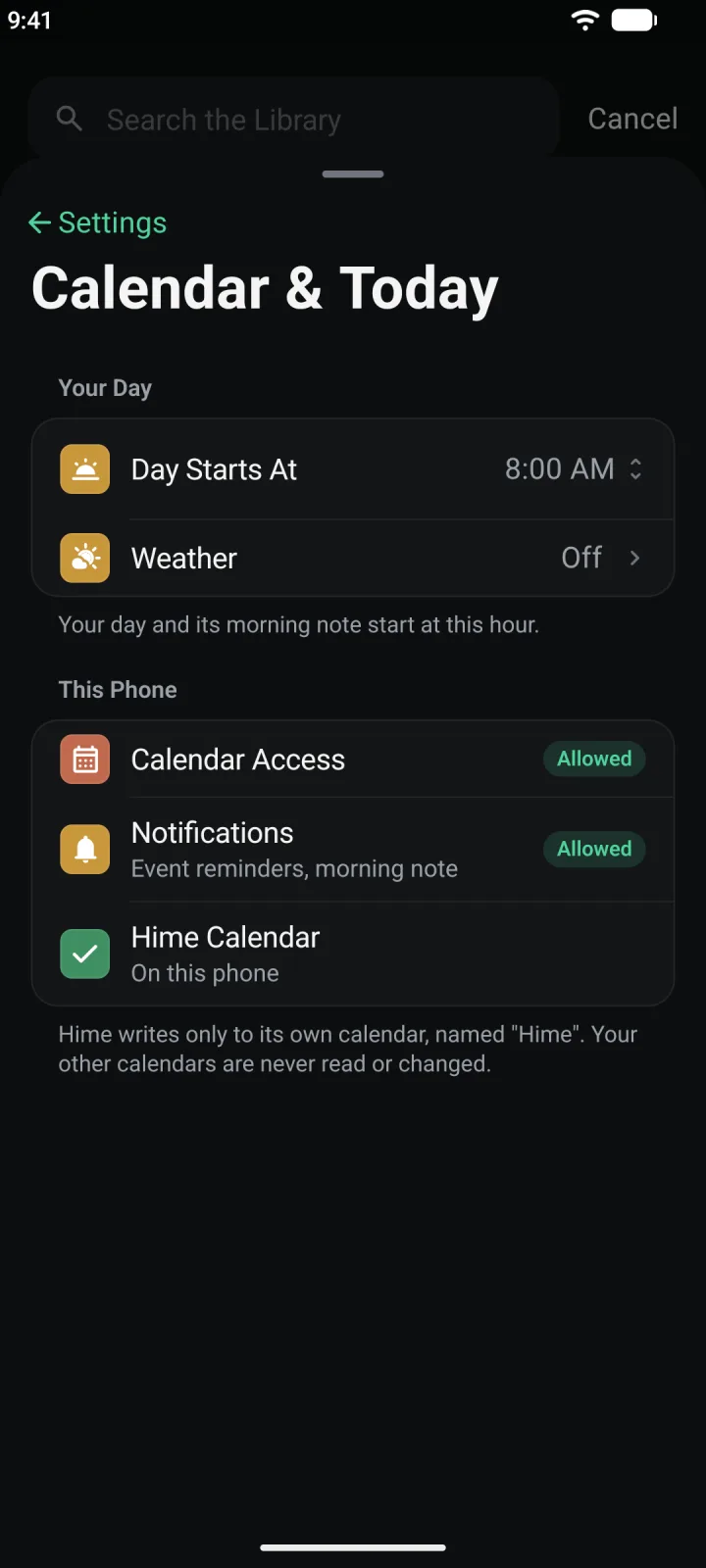
Under This iPhone (This Phone on Android), find Calendar Access. While it is off it says Off · Events stay in Hime. Tap Turn On and allow it when your phone asks.
If you said no before, Turn On opens Hime’s page in your phone’s Settings instead. Allow calendar access there.
Add an event
The row Hime Calendar says Created the first time an event syncs. Once an event syncs, Hime makes the calendar. After that the row says On this phone.
Hime writes only to its own calendar, named “Hime”. Your other calendars are never read or changed. That line is in the app too, under the section.
Events you make in Hime are copied into the “Hime” calendar. If you change one of them in your phone’s Calendar app, Hime picks the change up. It checks about once a minute and each time you open the app. Events sync. Scheduled tasks stay in Hime.
When both sides changed
Sometimes an event has been changed in Hime and in the Calendar app before either could see the other. Hime does not guess. It puts a small mark on the block. Open the event and its card has a row that shows what the calendar has, with Resolve beside it. Tap it and choose Keep Hime’s time or Use Calendar’s time.
You can also sort them in Calendar & Today. A Conflicts section appears at the top, but only when there are any. It shows the event with In Hime on one side and On phone on the other. Tap Keep Hime’s to put Hime’s time on the phone, or Keep phone’s to take the phone’s time into Hime.
Day Starts At and weather
Two settings under Your Day shape Today.
- Day Starts At. Tap it and pick an hour from 4 AM to 12 PM. The default is 8 AM. Your morning note arrives at this hour.
- Weather. It says Off until you choose a city. Tap it, search for your city, and pick it. You can show temperatures in °C or °F. The weather appears in the A quiet start band on Today.
Notifications and the morning note
The Notifications row says Event reminders, morning note. If it shows Allowed, you are set. If it says Off · Reminders won’t show, tap Turn On and allow notifications.
- Event reminders. A timed event reminds you 10 minutes before it starts, with Starts in 10 minutes. An all-day event reminds you at 9 AM on its day.
- The morning note. At your Day Starts At hour you get a quiet notification called Good morning. It tells you how many things are on the day and what comes first, for example: “3 tasks today. First up: Standup at 9 AM.” On an empty day it says: “Nothing scheduled yet. Plan your day on Today.”
Tap either one and Hime opens to Today. The morning note is made quietly on your phone, for the next two mornings, and it updates as your plans change. Changing Day Starts At moves it right away.
When your agent changes Today
Ask your agent in Chat to add, move, finish or remove things on your calendar, and it does. Each time, a card appears in the chat that says what it did.
If Today is on screen when the agent adds something, Hime goes to that day, scrolls to the new plan and makes it glow once. If you are on another screen, Hime waits up to 30 seconds for you to come back to Today. After that it lets the glow go, so you are not shown something from minutes ago.
Most changes come with a button on the card for ten minutes: Undo, Move back or Reopen. Tap it and the change is reversed. The button does the job itself, the same way Today does when you drag. It does not ask the agent to do it again.