DocsGet started
Get Hime
Install Hime on your iPhone or Android phone, sign up with the email your invite came to, and claim your gift.
You need three things: the app on your phone, the email address your invite came to, and about two minutes. If your invite came with a gift, it shows up on its own during setup.
Install Hime
Hime for iPhone is on the App Store. Open the link on your iPhone, tap Get, then Open.
Hime is in testing on Google Play before its public launch. Google asks every new app to run with a group of testers first, so you join that group, then install. It takes three taps.
- Continue with Google
Add your Google account to the testers
Use the Google account you use on Google Play. We only read its email address.
Done. You're on the testers list.
- Open Google Play
Become a tester
Google Play opens. Tap Become a tester. It can take a minute to appear after step 1.
- Install from Google Play
Install Hime
Then open it and sign up with the email address your invite came to.
Can't use Google sign-in here? Join the testers group with your Google account instead, then continue with step 2.
In step 2, Google Play opens a page like this one. Tap Become a tester.
Sign up with your invited email
Use the email address your invite came to. That is how a gift finds you, and it is the address you will use to sign in later.
Hime asks a few quick questions first, then your email. Nothing is saved to your account until you enter the code that comes by email.
Open Hime and tap Get started
A short hello plays. Tap Let’s go, then Continue through the three cards. Skip jumps ahead.
Answer a few questions
Each screen has one thing to do, then Continue.
- Make it Yours. Pick a look for your agent. You can change it later.
- What do you want Hime for? Pick one or more.
- What are you working on? Name up to three projects. Each becomes a folder. Tap Skip for now if you’d rather add them later.
- When does your day start? Today opens at this hour, and your morning note comes then.
Enter your invited email
On Save your Hime, type the address your invite came to and tap Send code. There is no password.
Type the code from your email
On Check your email, type the 6-digit code. Hime checks it after the sixth digit, so there is no button to tap. If nothing arrives, look in spam, or wait for the countdown and tap Resend code. Wrong address? Tap Change.
Add your plans to your calendar
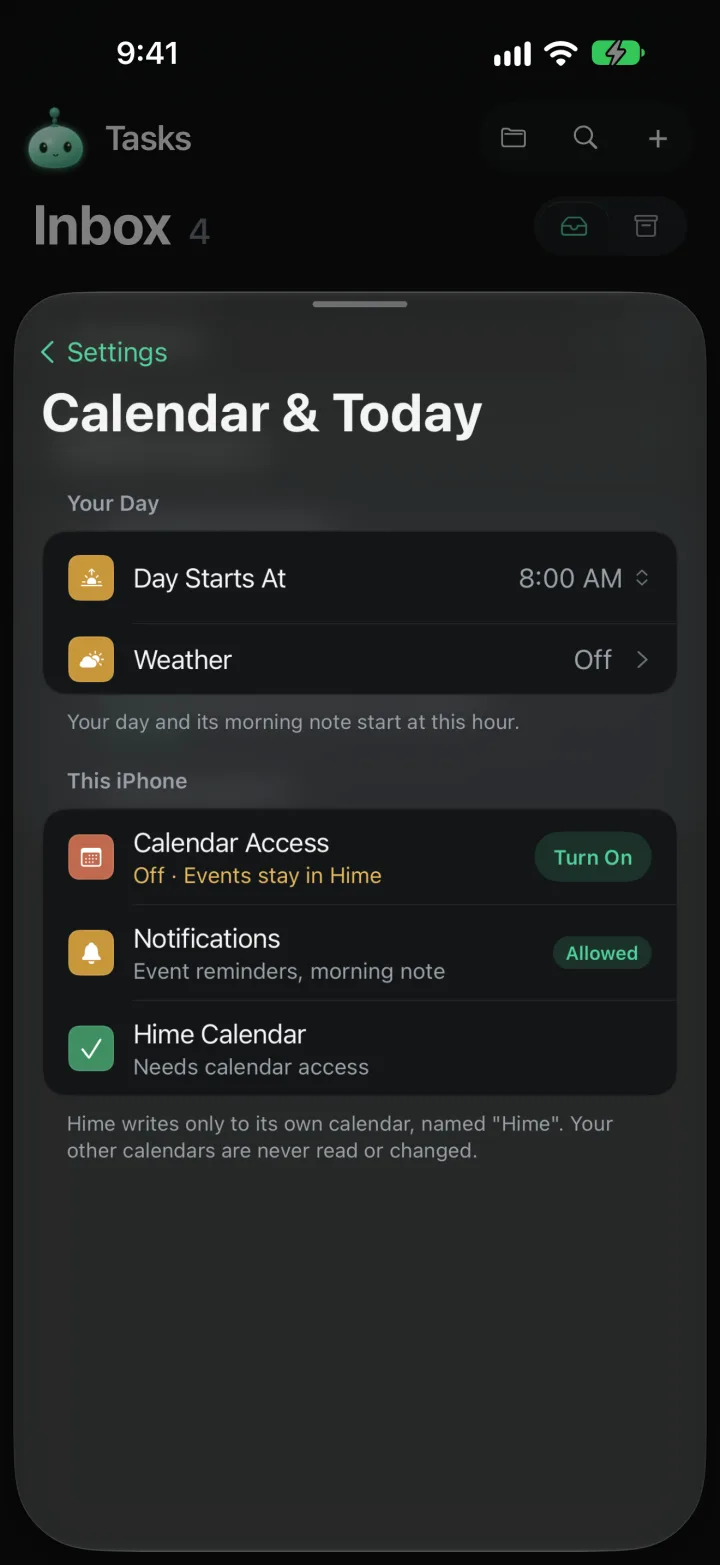
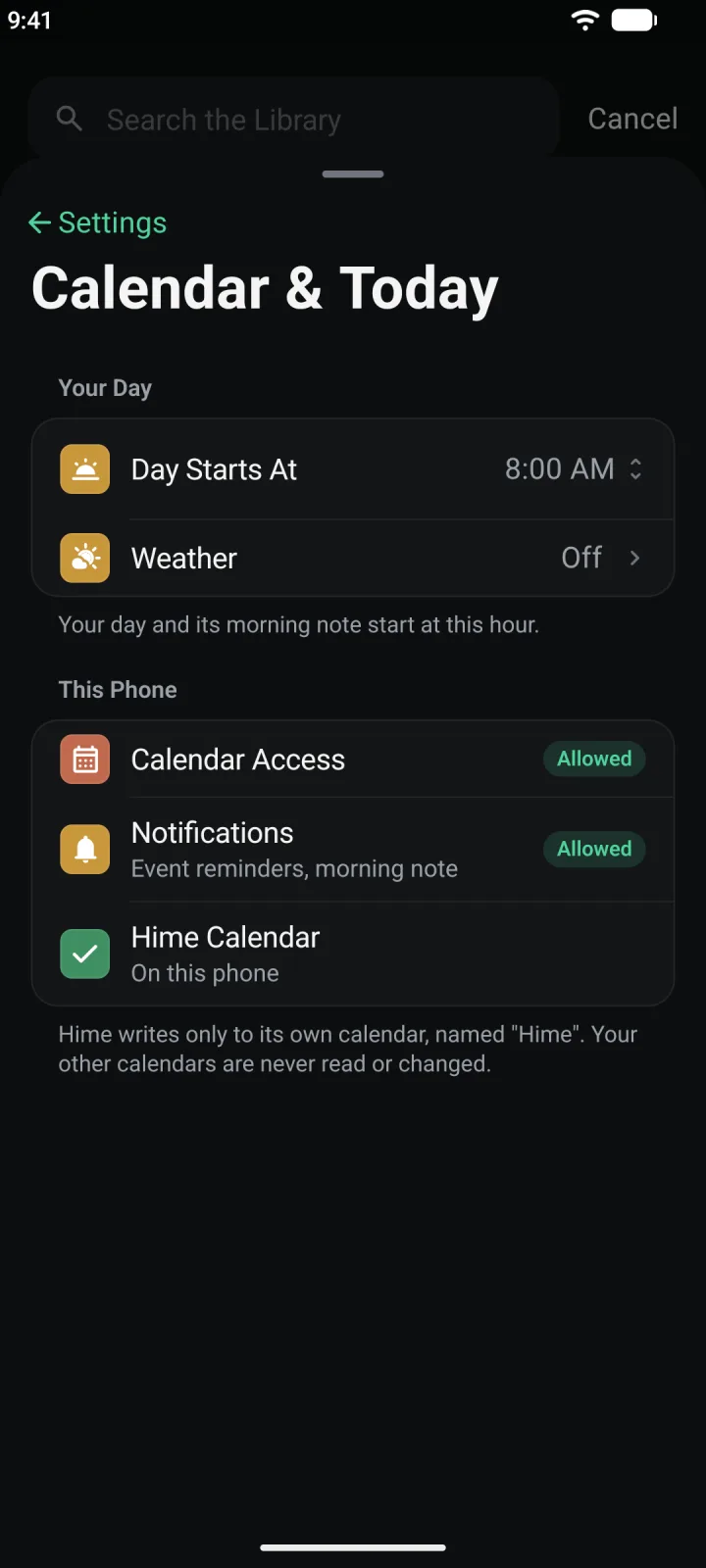
If you picked Plan my days, Hime asks Your plans, in Calendar too. Tap Add to Calendar to see what you schedule in your phone’s calendar app, in its own calendar called Hime. Tap Not now to skip it. Hime never reads your other calendars. You can turn this on later in Settings, under Calendar & Today.
Add your first task
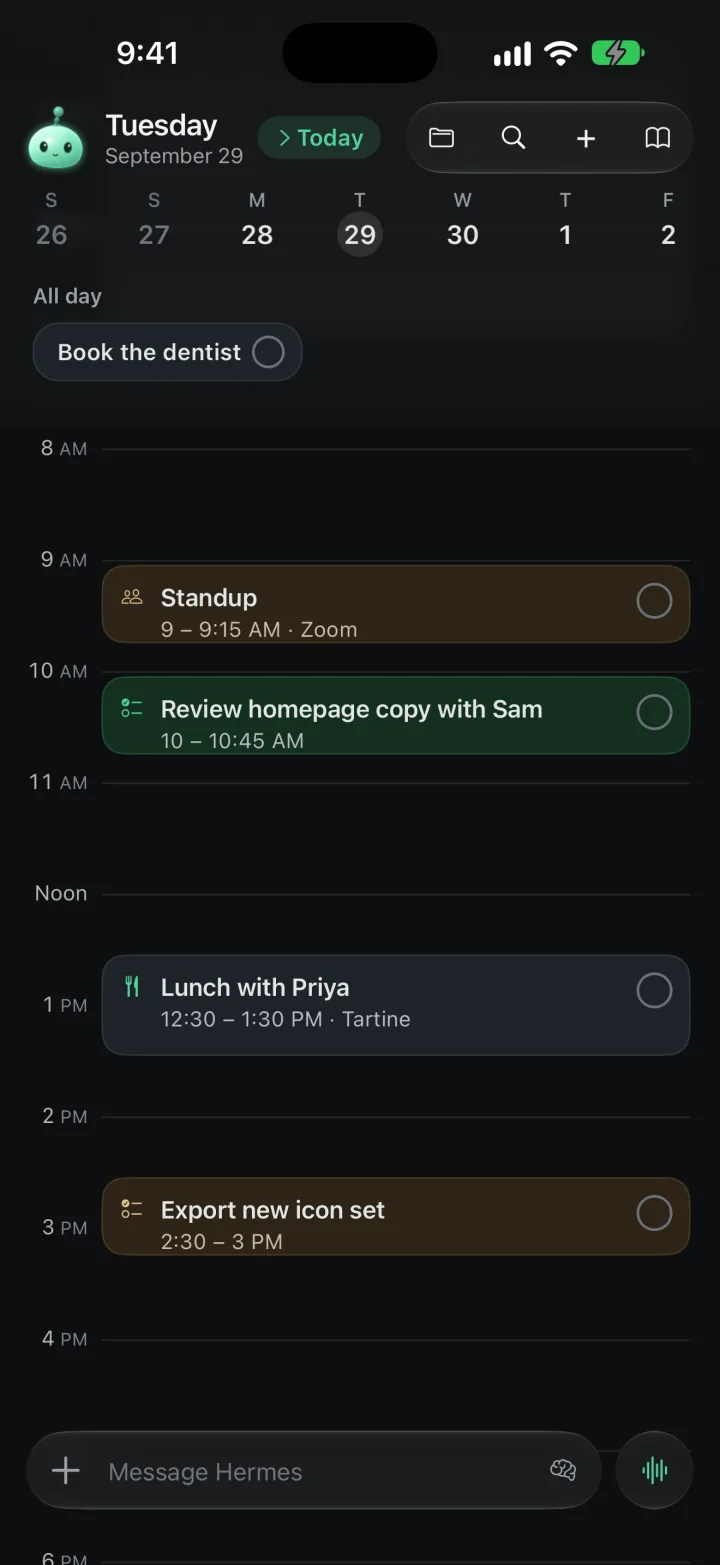
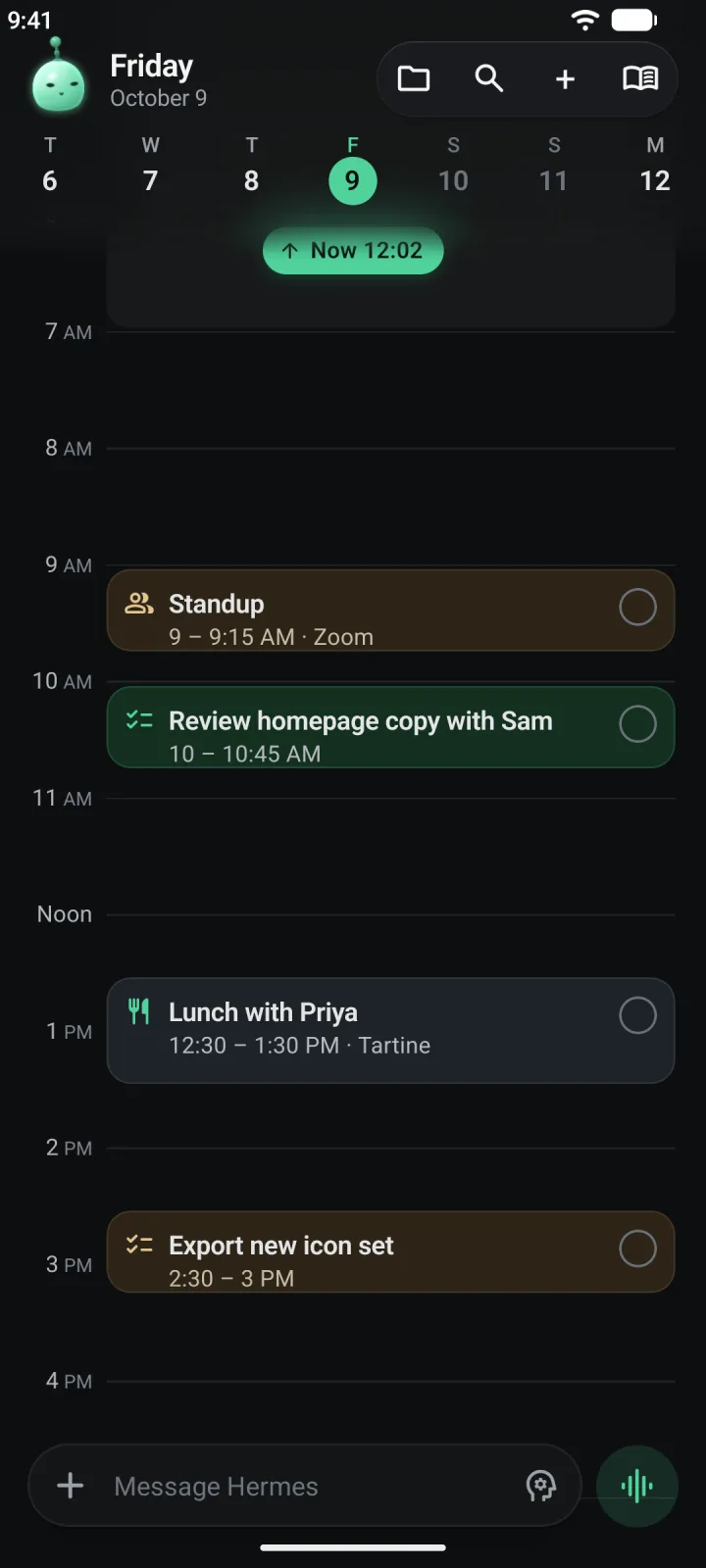
Type something you need to get done under One thing you need to get done? and tap Next. Then choose a time on Today or Inbox, and tap the button at the bottom. Last, Turn on notifications or Not now. You land on Today.
If your invite came with a gift
A gift is a free stretch of Hime Plus or Pro, from “for 1 month” up to “for life”. It is tied to your email address, so there is no code to type. Don’t buy a plan in the app.
During setup, Hime opens the gift for you. It lands a few seconds after you enter the code, so if you see One moment. and Checking your plan., give it a moment.
Open the gift
A wrapped box appears. Tap the gift, or pull the ribbon.
Tap Start using Plus
This card is an example: yours shows its own plan and term. It says You’ve been gifted Hime Plus and how long it lasts, for 1 month or for life. It may also say who it is from. Tap Start using Plus. For a Pro gift, the button says Start using Pro.
Setup skips the plan choice from here, because your plan is already on your account.
Already have an account with this address? Then the gift is already applied. Open Settings by pressing and holding the mascot at the top left, then Your Account, then Plan. A gift reads Granted by Hime. If it hasn’t shown the card yet, it appears the next time you open Hime.
On a computer
The web app at app.hime.ai comes with Plus or Pro, so a gifted plan counts. You sign in by linking it to your phone, so you don’t set up a password there either.
Open the web app
On your computer, go to app.hime.ai and choose Use my phone. It shows a code and six digits.
Open Link Something New on your phone
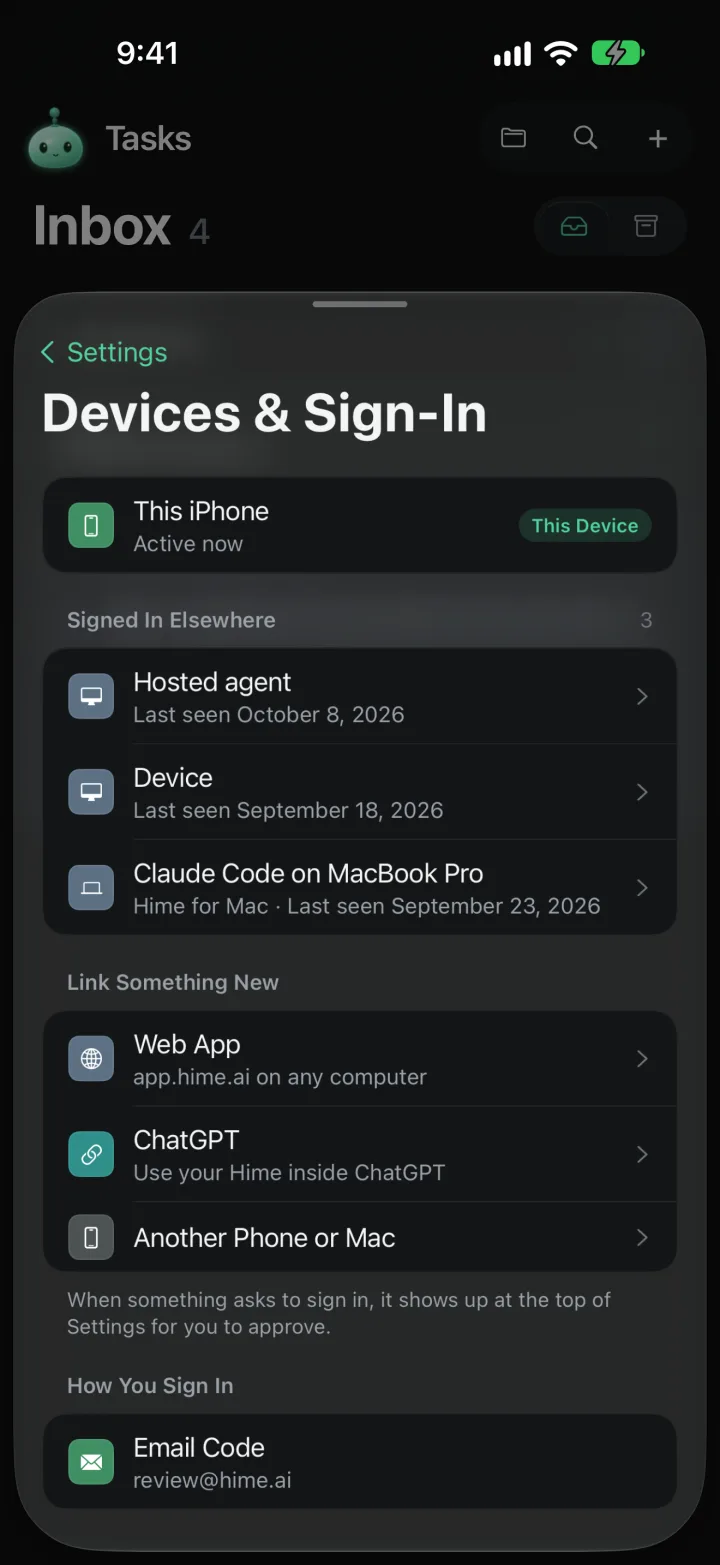
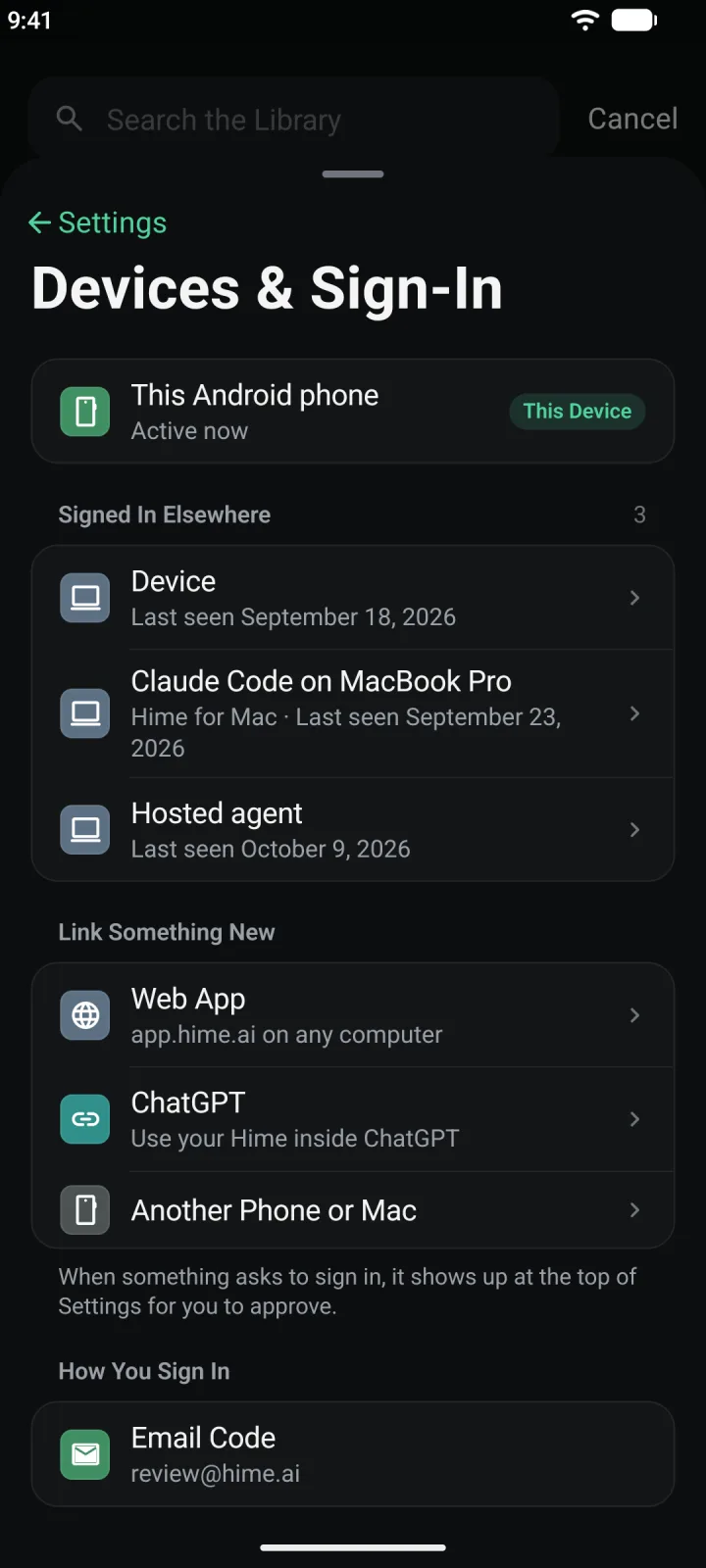
Press and hold the mascot at the top left to open Settings, then tap Devices & Sign-In. Under Link Something New, tap Web App.
Scan the code or type it
Point your phone’s camera at the code on the computer. Hime opens with the digits filled in. Or type the six digits under Or Type the Code.
Add the device
Tap Add Device. Hime asks Add This Device? Check that the digits match the ones on the computer, then tap Add Device again. The computer signs in right away.
The web app also has an Email tab. Use the same invited address there to sign in with a code, without your phone.
On the free plan, Web App says Comes with Plus or Pro and asks you to pick a plan first.
Next
Using Hime:
- Today: your day on one card, with calendar, tasks and plans together.
- Tasks: the Inbox, and how to put things on a day.
- Library: your notes and files, folder by folder.
Agents:
- Connect your agent: link Claude Code, Codex or another agent to your Hime.
- Connect ChatGPT: use your Hime inside ChatGPT.
- Talk to your agent: ask your agent to do things from the app.