DocsUsing Hime
Library and notes
Where your notes, files, bookmarks and projects live, how to find them again, and how to link them together.
The Library is where the things you keep go: notes, files, bookmarks and the projects that hold them. It is a sheet that slides up over whatever you were doing, so you can look something up and drop straight back to it.
Your agent works in the same Library. What you write, it can read. What it writes, you can see and change.
Open the Library
Tap Library, or Search
In the buttons at the top of the screen, tap the folder button, Library. The magnifying glass, Search, opens the same sheet with the keyboard already up.
The sheet opens half way, which is enough to glance. Drag it up, or tap the search field, and it fills the screen.
Look around
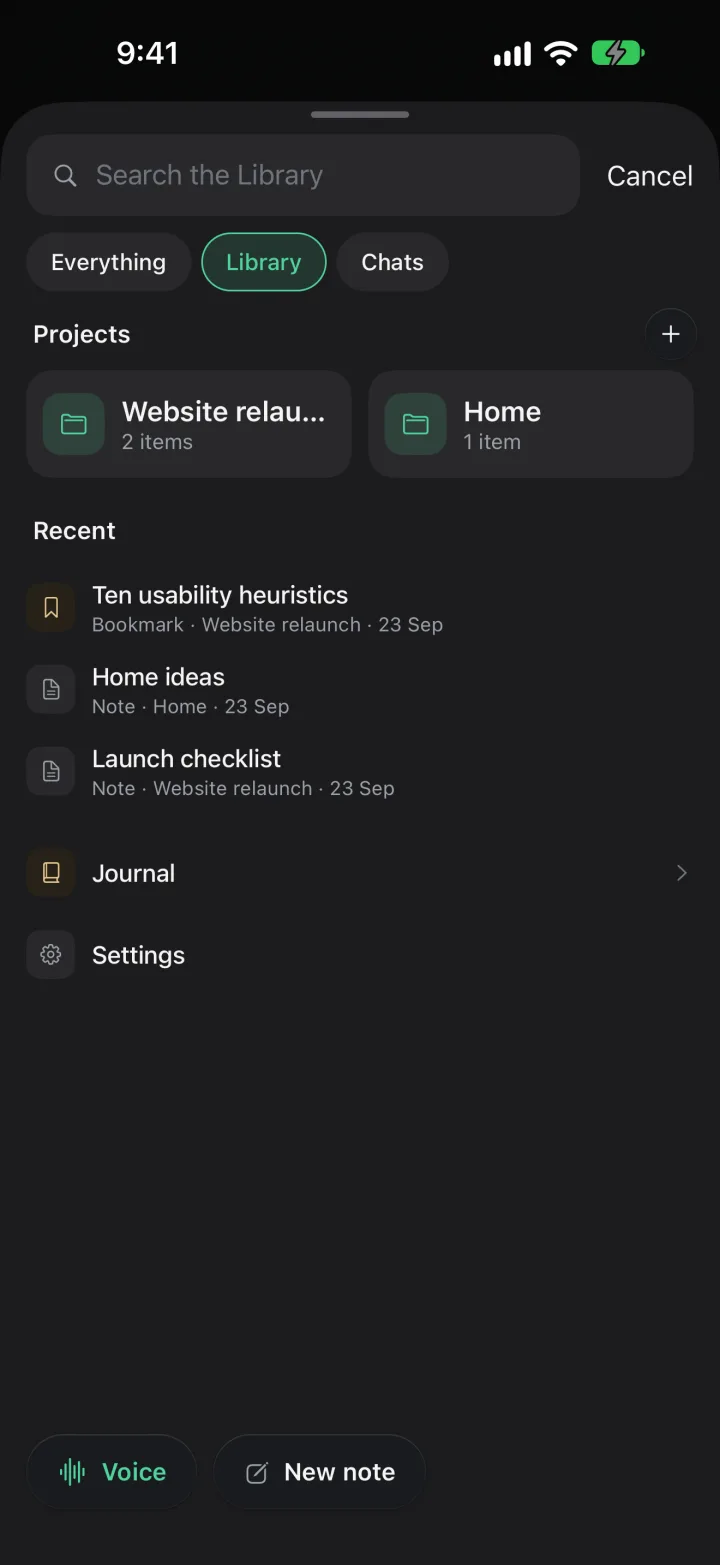
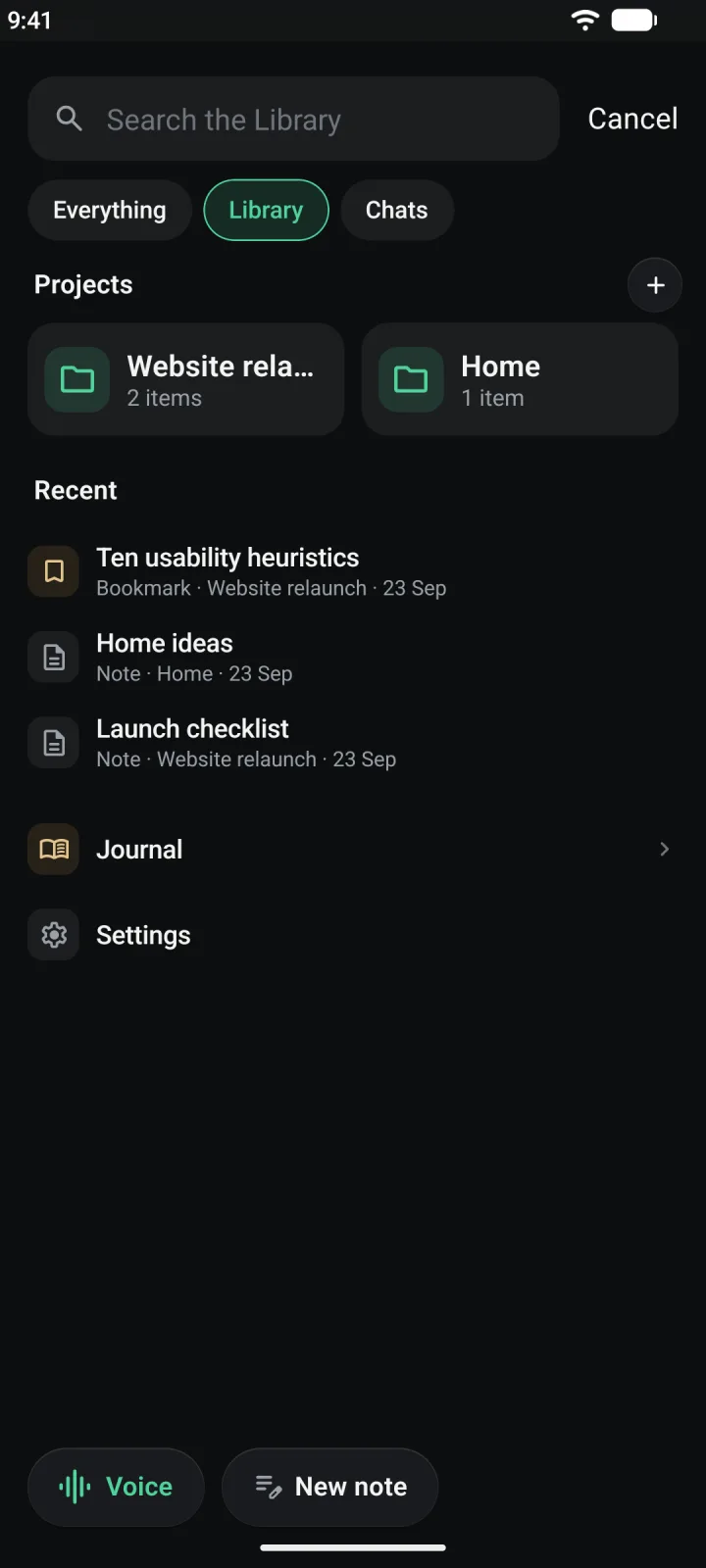
From the top, the sheet has a search field, three chips (Everything, Library and Chats), then Projects. Under them is Recent, your last few notes, files and bookmarks.
Files you have opened stay in a list called Open files. Journal and Settings sit below. At the bottom, Voice starts a call with your agent and New note starts a note.
Close it
Tap Cancel, or drag the sheet down. While you are searching, Cancel ends the search first. Tap it again to close the sheet.
Find something
Type in the search field. The chip you pick decides where Hime looks.
- Everything searches your notes, bookmarks, files, folders, tasks and events, and the names of your chats. The field says “Search or open anything”.
- Library searches only notes, bookmarks, files and folders. The field says “Search the Library”.
- Chats lists your agents’ chats by name. The field says “Search chats”.
Results come in two groups, Results and Chats. Tap one to open it. If nothing matches, the sheet says “No results for” and what you typed.
You can also skip the search. Recent shows the last five things you opened. Press and hold one for Open, Show in Folder and Remove from Recent.
Projects and folders
A top-level folder is a project. Tasks can belong to one, so a project can hold the notes and the to-dos for the same thing. Inside a project you can make folders as deep as you like.
Make a project
On the Library’s first page, tap the + next to Projects, then New project. Type a name and tap Create.
Add things to it
Tap the project to open it. Tap the + at the top right. The menu has New note, New folder and New bookmark. Under Upload you can add a photo or a file.
Move around
A project page lists its tasks, then Folders, then Items. Tap the back button, or any name in the path next to it, to go up. The path starts at Library.
Press and hold a folder, a note, a bookmark or a file for its menu.
- A folder has Rename, Move to…, Link…, Sort and Archive. Sort is Name or Recently edited. A folder only archives when it is empty. If it is not, the menu tells you how many things to move out first.
- A note, bookmark or file has Move to…, Move to Inbox, Link… and Archive. A note also has Edit. Bookmarks and files have Rename. You rename a note by tapping its title.
Archiving never deletes anything on the spot. A toast offers Undo right away. Later, you can restore anything you archived from Archived in Settings.
Anything that is not in a project sits in your Inbox. A new note made from the first page of the Library lands there.
Write a note
Start a note
Tap New note at the bottom of the Library. Inside a project, it files the note in that project. Or use the project’s + menu.
The note opens with the cursor in the title. Type a title and press Return to move down to the body. The body says “Start writing, or type @ to link a task…”.
Edit one you already have
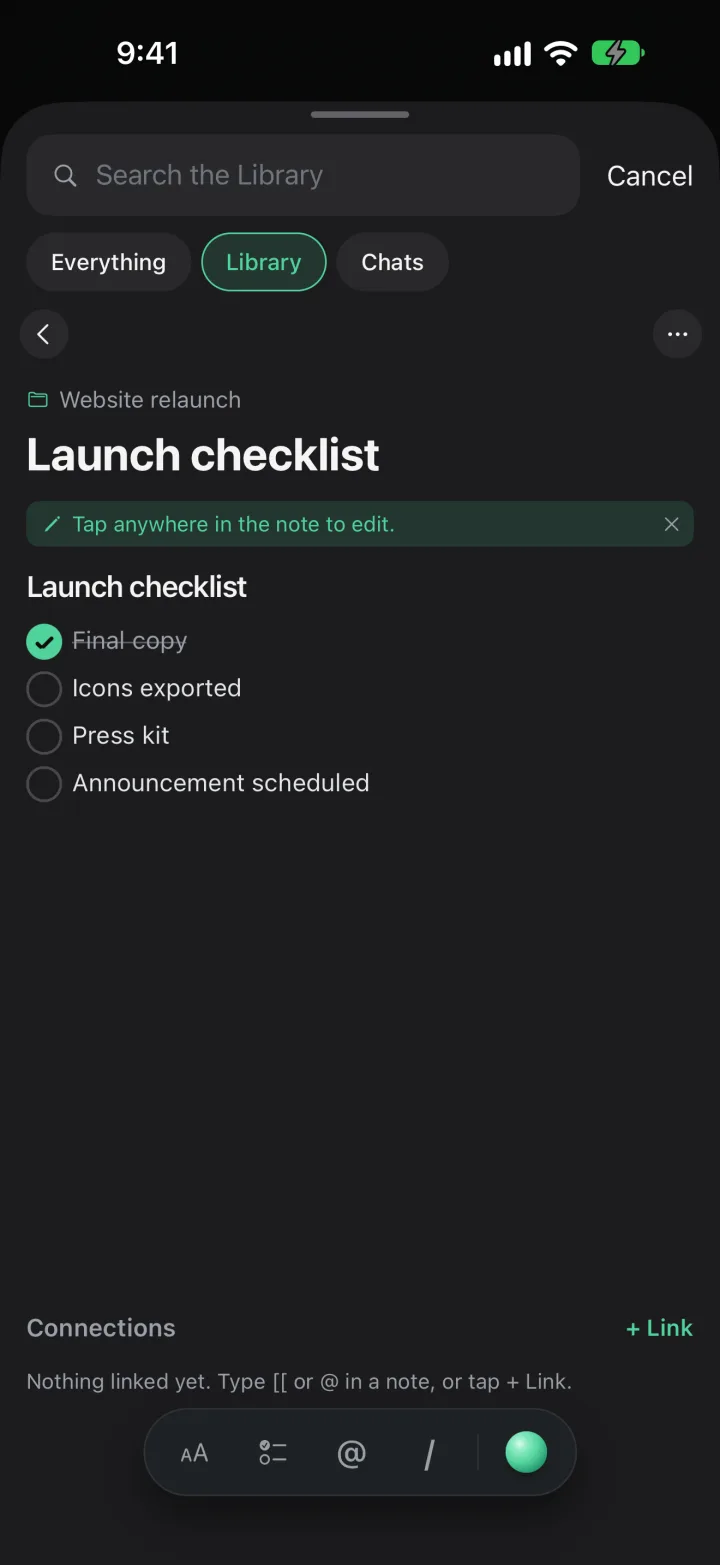
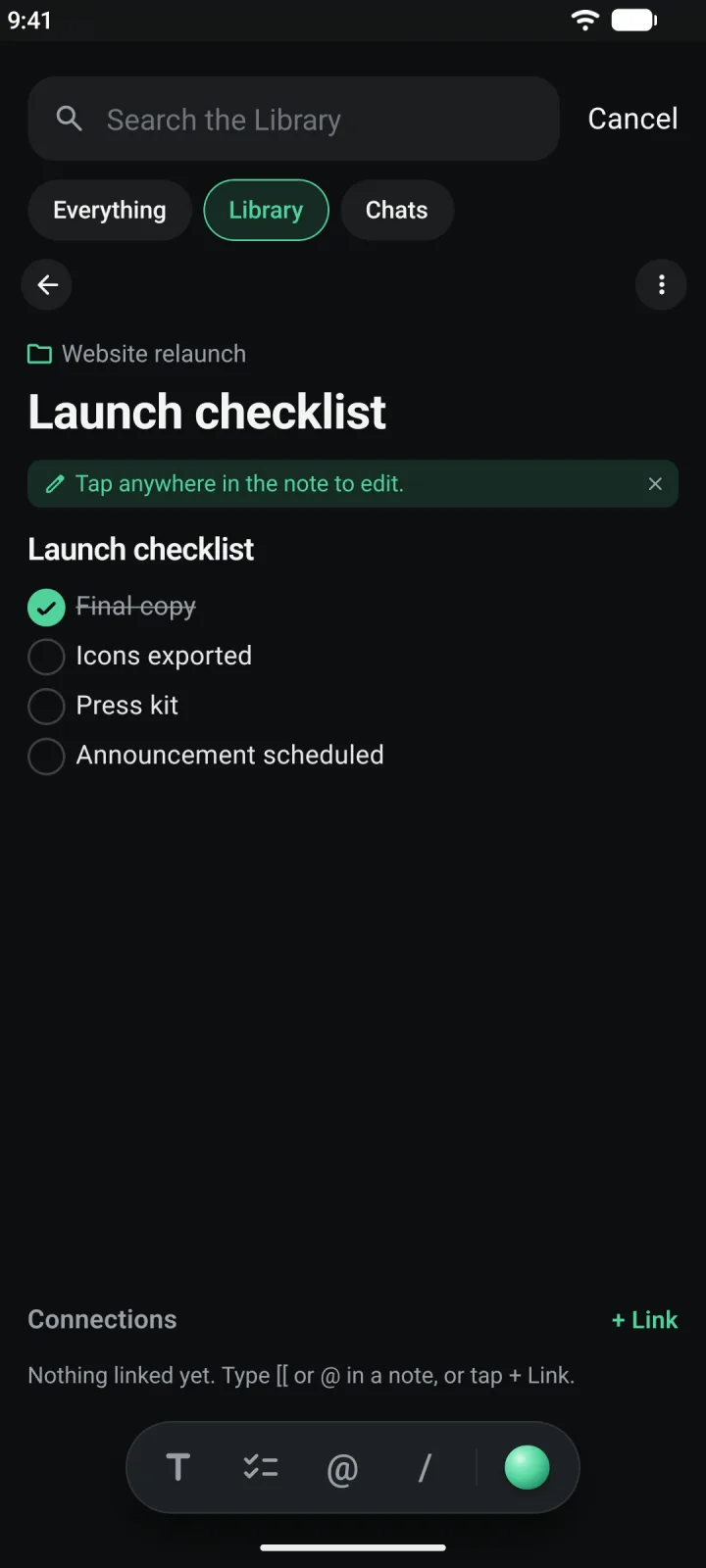
Open the note and tap anywhere in it. The first time, a tip says “Tap anywhere in the note to edit.” While you type, Done shows at the top right. Tap it to put the keyboard away.
You never save by hand. The top of the note says Saving…, then Saved. If a save fails it says Not saved · Retry, and your text stays on your phone until you tap it.
Format as you go
The pill floating above the keyboard has four tools and the agent.
- Heading turns the line you are on into a heading. Tap it again to turn it back.
- Checklist turns the line into a checklist item. Press Return to add the next one. Press Return on an empty item to finish the list. Tap an item’s circle to tick it.
- @ starts a mention. More on that below.
- / opens a list of blocks: Heading, Checklist, List, Quote, Code, Divider, Link and Task. Keep typing to narrow it. A Code block has a Copy button.
- Ask the agent, the green orb, closes the Library and opens your chat.
Notes are stored as plain markdown. If you know it, type it: # for a heading, - for a list, > for a quote, and triple backticks for code.
Link to other things
Type @ or [[ in a note, then the name of a task, note or event. A card opens above the keyboard with matches. Tap one, or press Return to take the top match.
Pick what to link
Before you type anything, the card suggests your most recent item and a web link. Tap Web link… to type an address, or Paste link when you have copied one.
As you type, it shows tasks, notes, events and bookmarks that match. The one Return would pick is highlighted.
Or make it on the spot
The last row says New “…” with what you typed. Switch it between Note and Task, tap it, and Hime creates the item and links it. A new note goes in the same folder as this one.
A linked task shows in your note as a live chip. Its title stays up to date, and tapping its circle completes the task. Tap a linked note and a small card previews it, with an Open button.
Connections
Every note, bookmark, file, task and event ends with Connections. It lists what is linked to it, both ways. A small number next to the title says how many. If there is nothing yet, it says “Nothing linked yet. Type [[ or @ in a note, or tap + Link.”
Add a link by hand
Tap + Link. A card asks you to find something with “Search notes, tasks, events…”. Pick the kind of link under Link kind: Related, Blocks, Mentions or Parent of. Then tap the item.
You can also press and hold any item in the Library and choose Link….
Read the list
Each connection reads as a short sentence, such as “Mentioned in Launch checklist” or “Related Ten usability heuristics”. Anything that blocks the item is shown first, in red. A long group folds behind a row like “+3 more”.
Tap a row to open it. Press and hold it to change how the two are related, to open it, or to Unlink.
Files and bookmarks
Add a file from a project’s + menu. Under Upload, Photo Library picks a photo, and Choose File picks anything else. On Android the first is called Photos. A file can be up to 25 MB.
The file appears in the list straight away, marked Uploading…. If it fails, the row says why and “Tap to retry”. Tap the × to give up on it.
To save a link, choose New bookmark. Type the address, add a title if you like, and tap Save. The title is optional.
Tap a file or bookmark to open it in a panel over the Library.
- Photos, markdown, plain text and web pages show right there.
- PDFs and Office files open in a full preview. On iPhone, tap Preview. Share or save sends a copy to another app. On Android, tap Open in….
- Anything else says “No preview for this file type.” You can still send it to another app.
- A bookmark shows its address and any notes. Tap Open to go to the page in your browser.
A file you have opened stays on the Library’s first page under Open files, so you can come back to it. Tap its × to close it. Close all closes the lot, with an Undo.
The Journal
Journal holds one note per day. You write in it from Today, not here, so each day’s note has one place to edit. Open a day in the Journal and tap Edit on Today to jump to it.
If you have not written any yet, the Journal says “Daily notes from Today show up here.”
Your agent and the Library
Your agent can search the Library, read a note, write a new one, add to a day’s journal, link things together, move them and archive them. It uses the same Library you do, so there is no separate copy to keep in step.
When it changes something, a card in your chat says what it did. For new things, moves and archives, the card has a button to take it back: Undo for something it made or archived, Move back for something it moved. The button stays for about ten minutes.