DocsUsing Hime
Tasks and questions
Capture tasks, sort them into Inbox and Backlog, put them on a day, and answer the questions your agent asks.
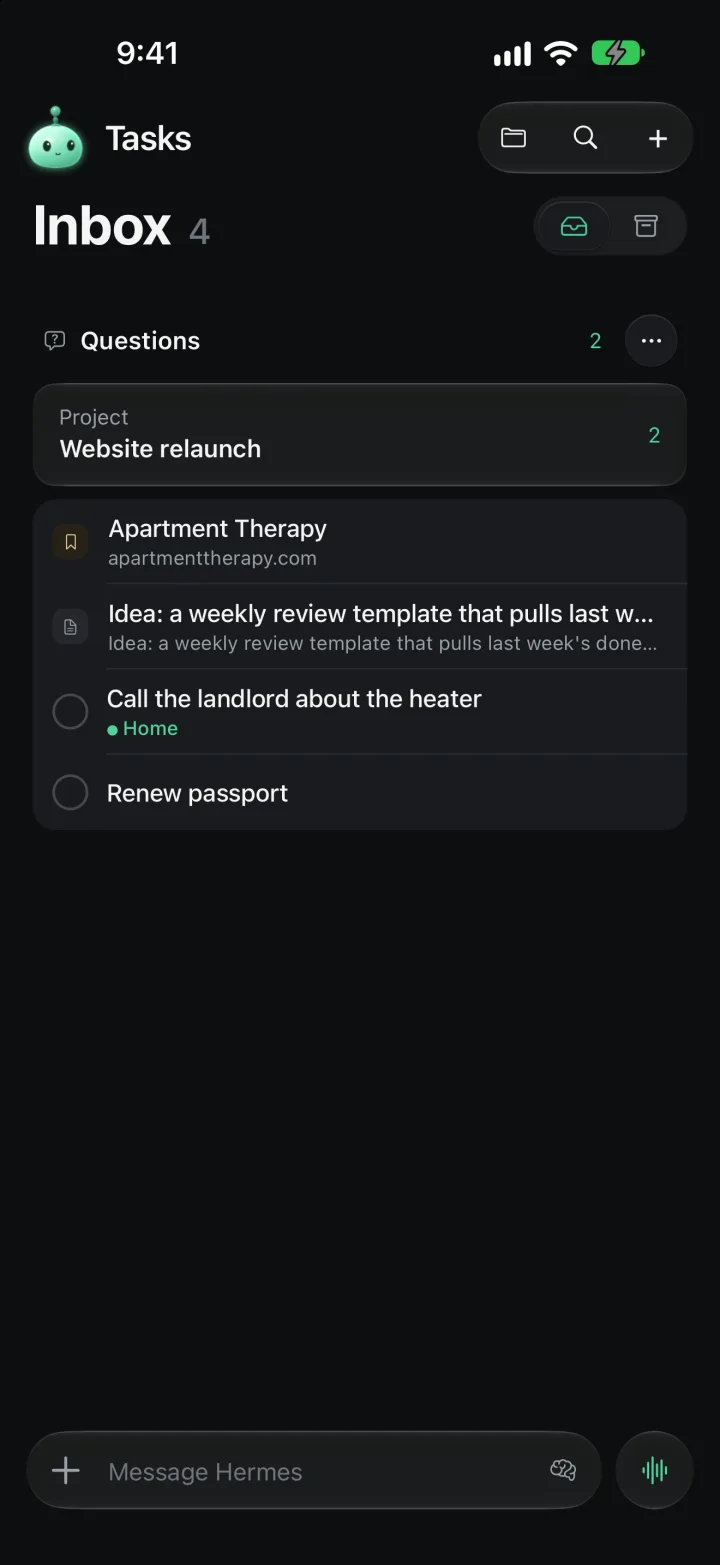
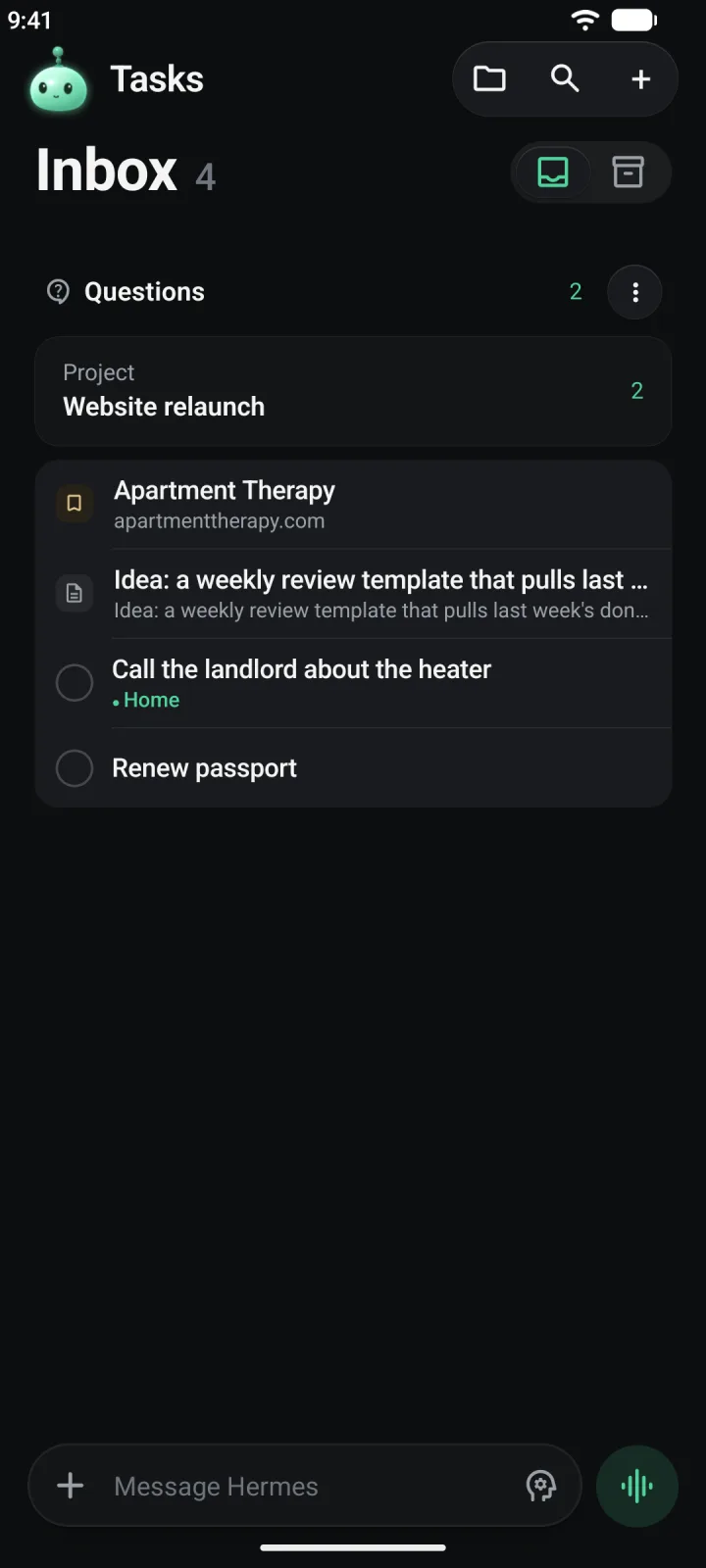
The Tasks pane is where things wait until you decide what to do with them. Tasks, notes, links and files you capture land here. So do the questions your agent needs answered.
Find the Tasks pane
Hime has three panes side by side: Tasks, Today and Chat, from left to right. Swipe sideways to move between them.
Today is the pane in the middle, so Tasks is one swipe right from Today. On Today, start the swipe at the very edge of the screen. On Tasks and Chat you can swipe from anywhere.
Inbox and Backlog
Tasks shows one list at a time. Use the switch at the top right, beside the large title, to flip between them.
- Inbox (the tray icon) is where new things land. It holds tasks, notes, bookmarks and files.
- Backlog (the archive box icon) holds tasks only. Park a task here when it isn’t for today. It waits until you give it a date.
The number beside the title counts what is still waiting in that list. Finished tasks don’t count.
When a list is empty, Hime says so: Inbox is clear. or Nothing waiting. On a brand new account the Inbox shows Nothing in your Inbox with an Add a task button.
Add a task
Tap the plus
Tap + at the right end of the bar at the top. You can also tap Add a task on an empty list. The keyboard opens and you can type at once.
While the card is open, the plus turns into a cross. Tap it again, or tap outside the card, to close it.
Type the task
Write the task in New task. Add a line of detail in Add a note… if you want one.
Choose where it goes
The first chip says Inbox. Tap it to switch to Backlog, and tap again to switch back. Tap Date to give the task a day, and Project to file it under a project.
Send it
Press return on the keyboard, or tap the round send button at the right. The task appears at the top of its list with a green wash and the words Just added. The card stays open, ready for the next task.
If you set a date, the chip for Inbox and Backlog goes away, because a dated task belongs to a day, not a list. Hime shows Task added and the day it landed on.
The card keeps the section and project you picked, so adding five tasks to the same project takes five lines and no extra taps.
Add something other than a task
The card has a small menu in its corner that says Task. Tap it to switch to Note, Event, Bookmark or File or photo. If you have copied a link, Paste link shows up too. Whatever you typed stays when you switch.
Notes, bookmarks and files you add this way land in the Inbox.
Check things off
Tap the circle at the left of a task to finish it. The row is struck through and stays in place for about two seconds. If you tapped by mistake, tap the circle again.
After that, finished tasks fold away. Under each list you’ll see a line like 4 completed with two links.
- Show opens the finished tasks in the list. It then reads Hide.
- Clear archives all of them at once. A message at the bottom says Archived and gives you Undo.
Row menus
Press and hold a row to open its menu. On Android, a long press opens the same choices as a list.
For a task, the menu has four entries.
- Move to Backlog, or Move to Inbox when the task is already in the Backlog.
- Schedule, which opens Today, Tomorrow, Next Week and Pick a Date…. Each day shows its date beneath it.
- Project, which lists None and your projects. The current one has a check.
- Archive. A message gives you Undo, so there is no confirmation dialog.
Tap a task to open it instead. The task sheet lets you rename it, add details, change where it waits or its day, and change its project. Its More actions menu adds Duplicate beside the moves and Archive.
Notes, bookmarks and files
These rows work a little differently. Tap one to open it in the Library, over the pane you’re on. Press and hold for its menu.
- A note offers Make Task, with Inbox and Backlog underneath. It also offers Move to folder… and Archive.
- A bookmark or file offers Move to folder… and Archive.
Moving something into a folder takes it out of the Inbox and files it in the Library.
Put a task on Today
Giving a task a date is how it gets onto Today. The task leaves Inbox or Backlog and shows up on that day, all day.
- Press and hold the task.
- Tap Schedule.
- Pick Today, Tomorrow or Next Week. For any other day, tap Pick a Date… and choose it on the task sheet.
A message at the bottom confirms the day and offers Undo. Tap it and the task goes back where it was.
You can also set the date when you add the task, using the Date chip on the card. The task then goes straight to that day on Today.
Projects
A project is a top-level folder in your Library. A task with a project shows the project’s name in green under its title.
Set one from the row menu with Project, from the Project chip on the new task card, or from the task sheet. Pick None to take the task out of its project again. To make a new project, add a top-level folder in the Library.
Questions from your agent
When an agent needs something from you, it asks. Questions wait in a Questions block at the top of the Inbox, above your rows. You don’t see the block until a question is waiting.
Questions are grouped into cards. A card is labelled with what the questions are about, such as a project or a task, with the name below it and the number still unanswered at the right. A card with a single question also lists it, with a check once you’ve answered it.
Open a card
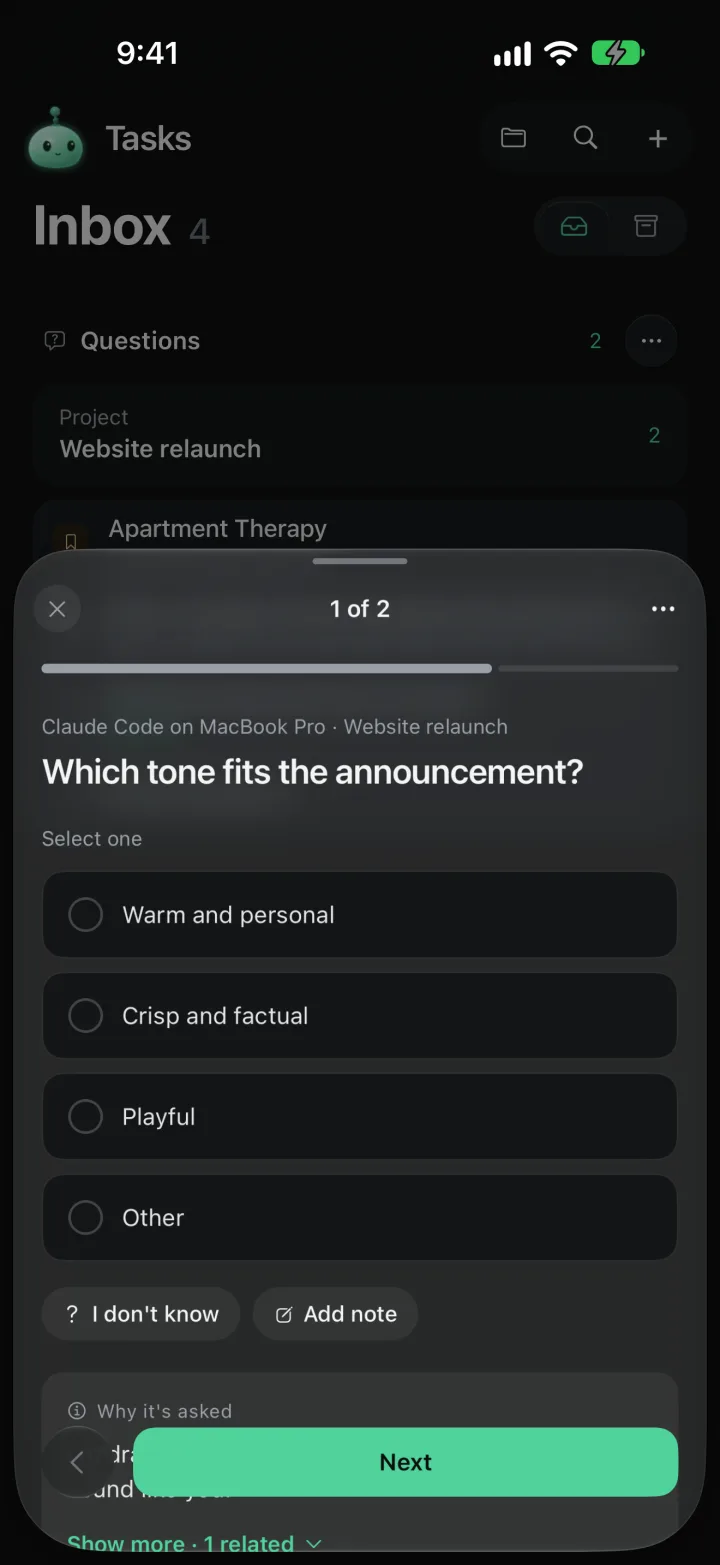
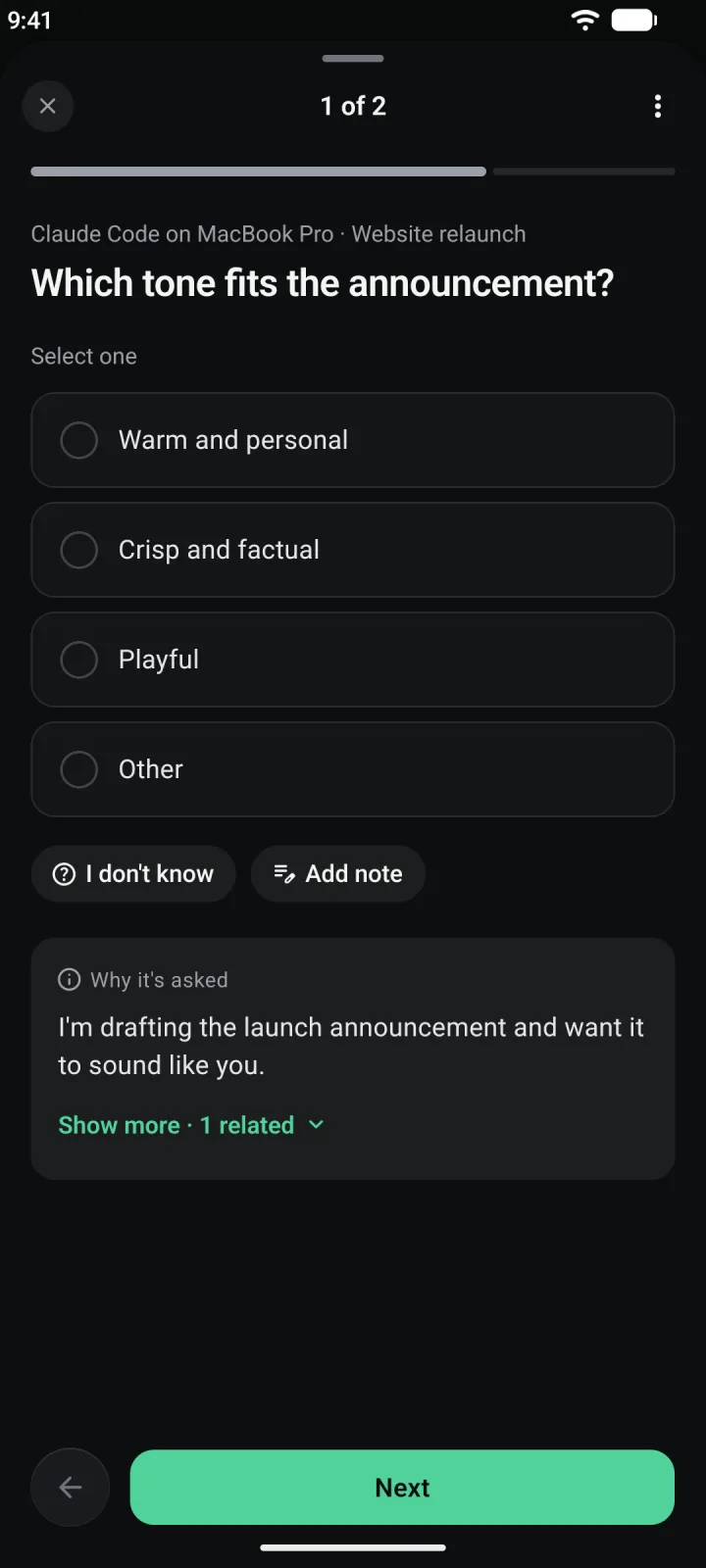
Tap the card, or tap the question under its name. A sheet slides up over Tasks. It starts on the first question you haven’t answered, and says where you are, for example 1 of 2. A bar under the title shows each question as answered, drafted or open.
Answer
A question is one of three kinds.
- Pick one: Select one. Tap an option.
- Pick several: Select all that apply. Tap each option that fits.
- Free text: type in Type your answer.
Choice questions end with an Other option. Tap it and a field opens for your own answer.
Say you don't know, or add a note
Tap I don’t know if you can’t say. That counts as an answer, so the agent can carry on. Tap Add note to leave a line of context with your answer. The chip then reads Note.
Check why it's asked
The grey box Why it’s asked gives the agent’s reason. Tap Show more for what happens next, the sources it used and links to related items. Tap Show less to fold it again.
Move on and send
Tap Next for the following question. The arrow beside it goes back to the previous one. You can also swipe the question left or right. On the last question the button reads Submit, or Submit 3 answers when you’ve changed several. Tap it and the sheet closes.
Your answers aren’t sent until you tap Submit. Tap the cross at the top left, or swipe the sheet down, and Hime keeps your drafts on the phone to finish later. If you’re offline, the sheet says Reconnect to submit answers. Your drafts are kept on this device.
More choices on a question
Tap the three dots at the top right of the sheet for Question actions.
- Remind me tomorrow hides the question until tomorrow.
- Dismiss request closes the request without an answer. A message offers Undo.
- Archive request files it away, also with Undo.
- Snoozed and History jump to those lists.
- Discard this draft clears what you typed for this question.
- Part way through a group, Submit answer now sends what you have without finishing the rest.
On a dismissed or archived question the menu offers Reopen or Restore instead.
Snoozed and old questions
The three dots beside Questions on the Inbox change the view.
- Current shows what is waiting.
- Snoozed shows what you put off with Remind me tomorrow.
- Archived and dismissed shows the history.
If only snoozed questions are left, the Questions block turns into one quiet line, such as 2 snoozed. Tap it to open them.
An answered question keeps its record. Open it and you’ll find your earlier answers, and whether an agent has handled them yet.