DocsAgents
Connect your agentPlus
Any AI agent, in a terminal, a desktop app or on the web, can work in your Hime. You approve it, and every change shows up as a card you can undo.
Once an agent is connected, it can read and change your tasks, events, notes, files and bio. Ask it to plan your week, file a note, or move a meeting, and it does it in your Hime. It can live in a terminal, in a desktop app or on the web. You choose which agents get in.
Every change an agent makes shows up in your chat as a card. You can open the card, or undo the change.
An agent that runs commands, and an agent app like ChatGPT, connect in different ways. Pick yours, and the page takes you to the right one.
Pick your agent
- Claude CodeTerminal or desktop app
- Claude DesktopCowork or the Code tab
- ChatGPTThe Hime app in ChatGPT
- CodexTerminal, IDE or app
- OpenClawRuns commands
- Hermes AgentRuns commands
- Muse CodeMeta, in a terminal
- Grok BotRuns commands
- Any other agentIf it has a shell






Most agents connect the same way: you paste one setup message into them, and they install the Hime CLI and sign in. ChatGPT is the exception. It uses the Hime app inside ChatGPT. Connecting by setup message needs Plus. On Free, Claude Code & Codex carries a Plus tag, and tapping it shows the plans.
Agents that can run commands
Any agent that can run shell commands on a Mac or Linux machine can use the setup message. That covers:
- Claude Code, in a terminal or in the Code tab of the Claude desktop app.
- Codex, in the CLI, your editor or the Codex app.
- OpenClaw and Hermes Agent, the open-source agents you run yourself.
- Muse Code, Meta’s terminal coding agent.
- Grok Bot, if you let it run commands on its own computer.
- Anything else with a shell.
The setup message tells the agent who it works for and how to sign in. It carries the install command, so the agent runs it for you. After that the agent has the Hime CLI, and a few commands for everything in your Hime.
You start in Hime on your phone, then finish in the agent. It takes a couple of minutes.
Open Your Agent
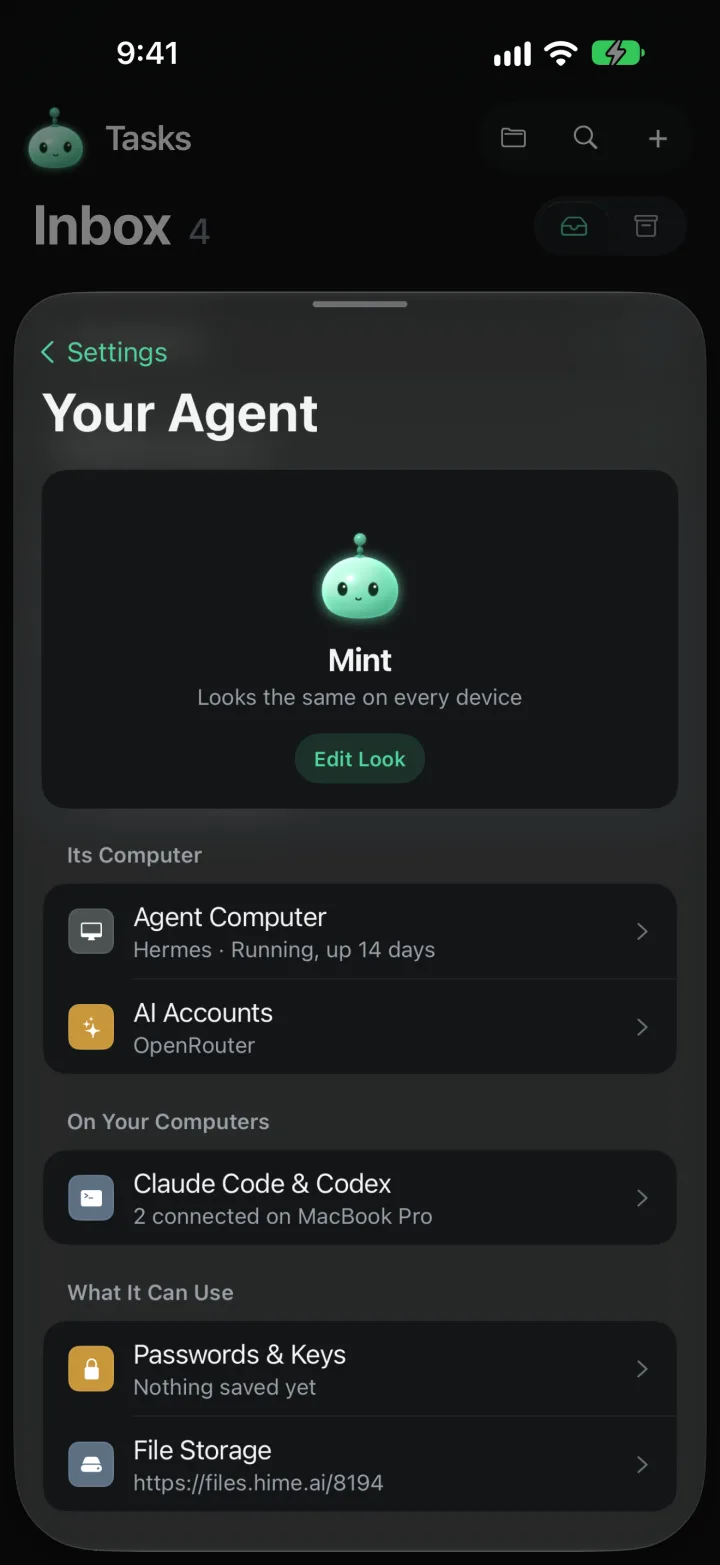
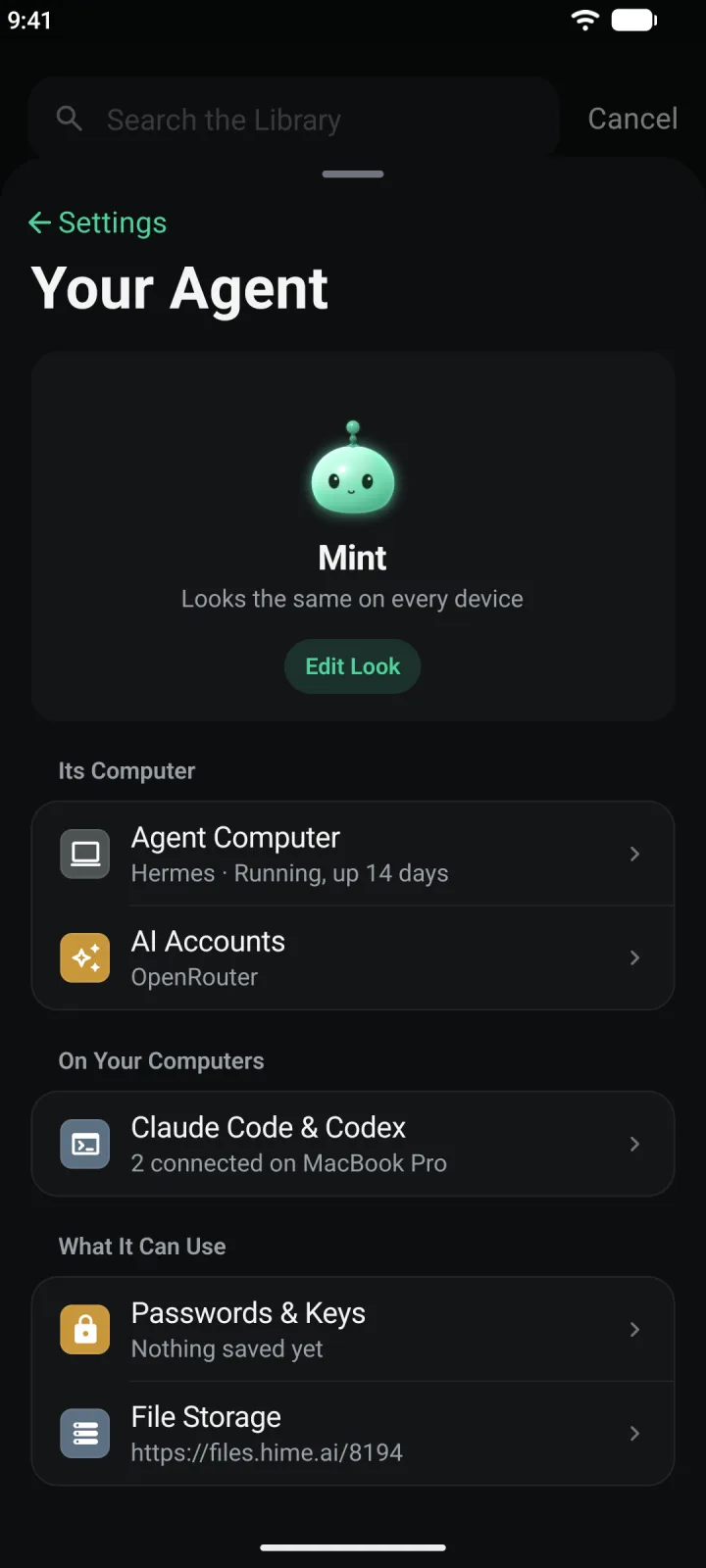
Press and hold the mascot at the top left to open Settings, then tap Your Agent. (A plain tap opens Chat.)
Open Claude Code & Codex
Under On Your Computers, tap Claude Code & Codex. This is the screen for every agent that runs commands, not only those two.
The screen says “Agents on your own computer that can read and write your Hime.” Nothing is connected yet, so Connected is empty.
Create a setup message
Under Connect Another, tap Create Setup Message.
The first time, Hime asks “Share your Hime with an AI agent?” It explains that the agent can read and change your tasks, events, notes, files and bio. It also says the agent sends what it reads to the AI company it uses, such as Anthropic or OpenAI, under that company’s terms. Hime doesn’t choose or run that model.
Tap Agree to go on. If you tap Not now, nothing is created.
Copy the setup message
The card now says “Waiting for your agent” and the date you made it. Tap Copy Setup Message. The button says Copied for a moment.
The message tells the agent who you work with and how to sign in. It carries the install command, so the agent can run it for you.
If you would rather run the command yourself, tap Copy Command. That copies only the install and sign-in line, ready for a terminal.
Paste it into your agent
Open your agent where it runs: Claude Code, Codex, OpenClaw, Hermes Agent, or another. Paste the message and send it.
The agent installs the Hime CLI into
~/.hime/bin, signs in, and checks withhime whoami. It works on Mac and Linux, and needs to reach the internet to download the CLI.If the agent asks to run a command, that is the install. Allow it. If you copied only the command, paste it into Terminal yourself.
Your agent runs the message for you. Your own token and claim are in place of the dots. See it connected
Go back to Hime. The agent now sits under Connected, named for the agent and your computer, like “Claude Code” on “MacBook Pro”. The top of the screen says “1 agent connected”.
The card is now headed “In use by Claude Code”, with the date you set it up. If Hime doesn’t recognise the agent, it shows as “Agent”. You can rename it from its ••• menu.
One setup message goes with one agent. To connect a different agent, tap Reset Access… to make a new message. The agent set up with the old message loses access.
To check the connection yourself, run this in your terminal:
~/.hime/bin/hime whoamiIt prints who the computer is signed in as. If the command isn’t found, the installer couldn’t add hime to your PATH. Use the full path, as above.
Hime in ChatGPT
ChatGPT doesn’t run commands on your computer. Instead, Hime is an app inside ChatGPT. It opens your Hime beside the conversation, with Today, Tasks and the Library, and signed in as you. ChatGPT can then search and read your documents, tasks, events, bookmarks, folders and questions.
If you allow changes, ChatGPT can also add and change tasks, events, notes, bookmarks and folders, ask you questions, and save files to your Library. It normally asks you before each change, and it can’t delete anything.
Linking takes your phone. You sign Hime in inside ChatGPT, then approve it from the Hime app.
Open the Hime app in ChatGPT
In ChatGPT, open the Hime app. If it isn’t signed in yet, Hime shows its sign-in card, with Email and Use my phone.
To sign in with email, enter your address and the six-digit code it sends. To use your phone, choose Use my phone. Hime shows a code and a QR code. Leave this up, and take your phone.
Link ChatGPT from your phone
In Hime, press and hold the mascot to open Settings, then tap Devices & Sign-In. Under Link Something New, tap ChatGPT, which says “Use your Hime inside ChatGPT”.
Point your phone’s camera at the code in ChatGPT. Hime opens with the code filled in. If you can’t scan it, type the six digits under Or Type the Code.
Tap Add Device. Hime asks “Add This Device?” and says it will see everything in your Hime. Only continue if the digits match the ones ChatGPT shows, then tap Add Device again. The screen says “Added. It’s signed in now.”
Allow ChatGPT
Back in ChatGPT, Hime asks “Connect (your name) to ChatGPT” and lists what ChatGPT will be able to do: Read your Hime, and Make changes if ChatGPT asked for it.
Tap Allow. To let ChatGPT look but not touch, tap Allow read only instead. With read-only access, changes happen only when you make them in the Hime panel.
Your Hime then opens inside ChatGPT, signed in. You can also pick an item and tap Ask ChatGPT about this. Hime shows exactly what it will send, the title, a short excerpt and the ID, and sends nothing until you do.
If you linked ChatGPT before it could make changes, it stays read-only. The first time ChatGPT needs to change something, it asks you to link again, once.
To disconnect, open Devices & Sign-In in Hime. ChatGPT shows up there as a device, “Hime in ChatGPT”. Remove it, and ChatGPT and every panel signed in through it lose access.
Claude Desktop and claude.ai
Hime doesn’t have a Claude connector yet. Hime’s app address is set up to sign in with ChatGPT only, so adding it under Claude’s connectors won’t link your account. Use one of these instead.
- The Code tab. The Code tab of the Claude desktop app is Claude Code, running on your computer. Open it, paste the setup message from the steps above, and send it. It installs the Hime CLI the same way a terminal does.
- Cowork. Start a task, paste the setup message, and let Cowork run it. This works only if Cowork can run commands and reach the internet from where it runs. If it asks, allow the install. If it can’t, use the Code tab.
- claude.ai in a browser. A chat on claude.ai can’t run commands on your computer, so it can’t use the setup message. Use Claude Code or the Code tab.
Either way, the agent shows up under Connected in Hime, and its changes appear as cards in your chat.
Use Hime from Claude Code or Codex as an MCP server
The CLI can also run as an MCP server, so Claude Code, Codex and other MCP-capable agents get Hime as a set of tools instead of shell commands. Do this after the steps above, because it uses the credentials they saved.
For Claude Code, run:
claude mcp add hime -- hime mcpFor Codex, add this to ~/.codex/config.toml:
[mcp_servers.hime]
command = "hime"
args = ["mcp"]
Both start hime mcp themselves and talk to it directly. Nothing else needs to be running. Another agent that can start a local MCP server takes the same command, hime mcp, in its own settings.
If you haven’t signed in yet, the tools answer “Not signed in: run hime login”. Run the setup message first.
On the web app
You can make the same message from the web app at app.hime.ai.
- Click your initials at the top right to open Settings.
- Under Agents, click Connected agents. On Free it shows a Plus tag, and the page says “Connected agents come with Plus”, with a See Plus button.
- Under Connect an agent, click Create setup message.
- Click Copy setup message, or Copy command for only the command. The token under it stays hidden as dots until you click Show.
- Paste it into your agent, as in the steps above.
The web app doesn’t ask the consent question. Your agents appear under Connected agents, with a pencil to rename each one and a Revoke button to disconnect it.
Disconnect or reset access
To disconnect one agent on your phone, open Claude Code & Codex, tap ••• on its row, and tap Disconnect Claude Code… (with the agent’s own name). Confirm with Disconnect. It loses access to your Hime straight away. The same menu has Rename….
To start over, scroll to the bottom and tap Reset Access…, then Reset. Hime makes a new setup message. The old one stops working, and so does any agent that was set up with it. Set the agent up again with the new message. On the web, this is Reset access… under Access, and it signs out every connected agent.
ChatGPT is separate: it isn’t a setup message, so Reset Access doesn’t touch it. Remove it under Devices & Sign-In, as above.
An agent also shows in Devices & Sign-In under Signed In Elsewhere, for example as “Claude Code on MacBook Pro”.
If your plan ends, the screen says “Agents Paused” and “Your plan ended. Nothing was removed.” Your agents stay listed, and Subscribe to reconnect brings them back.